Qwen3.8-27B is the kind of model that makes local AI interesting again.
When a new large language model is released, most coverage immediately focuses on benchmark scores. Those numbers are useful, but they don’t answer the question many developers actually care about:
Can I run this model on my own computer?
With Qwen3.8-27B, the answer is yes, but the hardware and software stack you choose make a huge difference.
The model is a 27-billion-parameter dense model rather than a small local chatbot. It is therefore much heavier than the 7B or 8B models that can comfortably run on ordinary laptops. At the same time, quantized versions make it practical on high-end consumer GPUs and Apple Silicon systems.
There are two particularly useful ways to run it locally:
- GGUF + llama.cpp for relatively accessible local inference
- Official FP8 + vLLM for higher-end NVIDIA systems, API serving, and development workflows
The official Qwen3.8-27B FP8 repository provides weights compatible with vLLM and other modern inference frameworks, while community GGUF builds are available for llama.cpp-based setups.
This guide walks through both approaches and explains which one makes sense for different hardware.
Before You Install Anything: Check Your Hardware
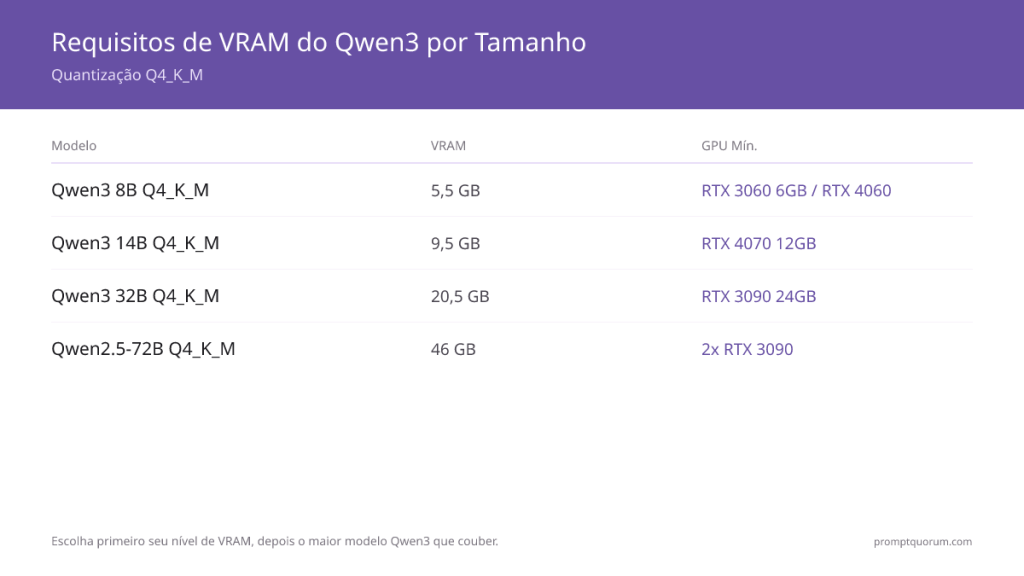
The first mistake people make with a 27B model is looking only at the model’s parameter count.
A model being called “27B” doesn’t tell you exactly how much hardware you need.
Actual memory requirements depend on several things:
- Model precision
- Quantization level
- Context length
- KV cache
- GPU memory
- CPU memory
- Number of concurrent requests
- Vision components
- Inference framework
A quantized model that fits into 24 GB of VRAM may still fail to start if you allocate an unnecessarily large context window.
Rough Hardware Guidelines
For a practical starting point, think about the hardware this way:
| Hardware | Suggested Approach |
|---|---|
| 16 GB NVIDIA GPU | Small GGUF quantization or partial CPU offload |
| 24 GB NVIDIA GPU | Q4 GGUF |
| 32 GB Apple unified memory | Q4 GGUF |
| 48 GB+ NVIDIA VRAM | Official FP8 + vLLM |
| 32 GB+ system RAM, CPU only | GGUF, but expect low performance |
These are practical starting points rather than hard requirements.
The exact result depends heavily on the quantization build and context size.
The important thing is to leave room for runtime memory. A model file fitting inside available VRAM does not automatically mean the inference server will run successfully.
Don’t Start With a 262K Context Window
One of the attractive features of Qwen3.8-27B is its large context capability.
That doesn’t mean you should immediately configure the maximum context length.
A large context requires additional memory for the KV cache. Increasing the context window can therefore turn a configuration that works at 8K or 16K into an out-of-memory error.
For a first installation, I recommend:
8K → 16K → 32K
Increase the context only after confirming that the model is stable.
This is particularly important on consumer hardware.
Option A: Run Qwen3.8-27B with GGUF and llama.cpp
For most individual users, this is the easiest route.
GGUF is particularly convenient because it allows the model to be quantized to lower precision, dramatically reducing memory requirements.
This approach is a good fit for:
- RTX 3090
- RTX 4090
- Other 24 GB GPUs
- Apple Silicon Macs with sufficient unified memory
- CPU + GPU hybrid inference
- Developers who want a local OpenAI-compatible API
The Qwen ecosystem already documents GGUF and llama.cpp as a local inference route, and the community Qwen3.8-27B GGUF repository provides ready-to-run quantized files.
Step 1: Install llama.cpp
macOS or Linux
A convenient installation method is:
curl -LsSf https://llama.app/install.sh | sh
You can also build llama.cpp yourself or use a precompiled release.
Windows
On a current Windows installation with WinGet:
winget install llama.cpp
After installation, check whether the command is available:
llama --help
If the command is recognized, llama.cpp is ready.
Step 2: Download and Run a Quantized Qwen3.8-27B Model
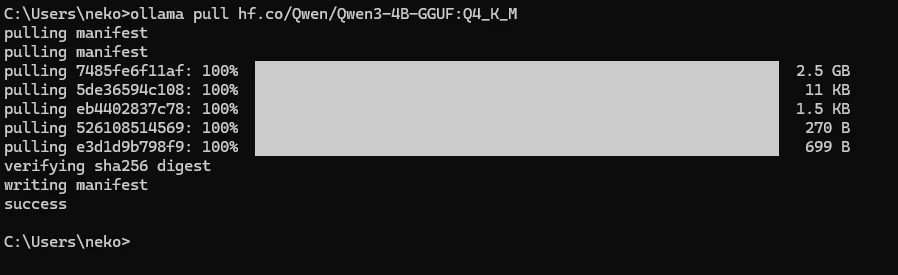
One convenient community build is the Unsloth Qwen3.8-27B GGUF repository.
For a Q4-class model, you can start with:
llama cli -hf unsloth/Qwen3.8-27B-GGUF:UD-Q4_K_XL
The first run will download the model automatically.
Make sure you have enough free disk space before starting. A model file can be considerably smaller than the complete working environment, so don’t treat the model’s advertised file size as the exact amount of storage required.
For a 24 GB GPU, Q4 is a sensible starting point.
If memory is still insufficient, try a smaller quantization:
llama cli -hf unsloth/Qwen3.8-27B-GGUF:Q3_K_M
If you have more system memory and want to preserve more model quality, a Q5 variant may be worth testing:
llama cli -hf unsloth/Qwen3.8-27B-GGUF:Q5_K_M
The exact quantization choices available can change as community repositories are updated, so check the model repository before choosing a specific file.
Step 3: Start a Local Web Interface and API
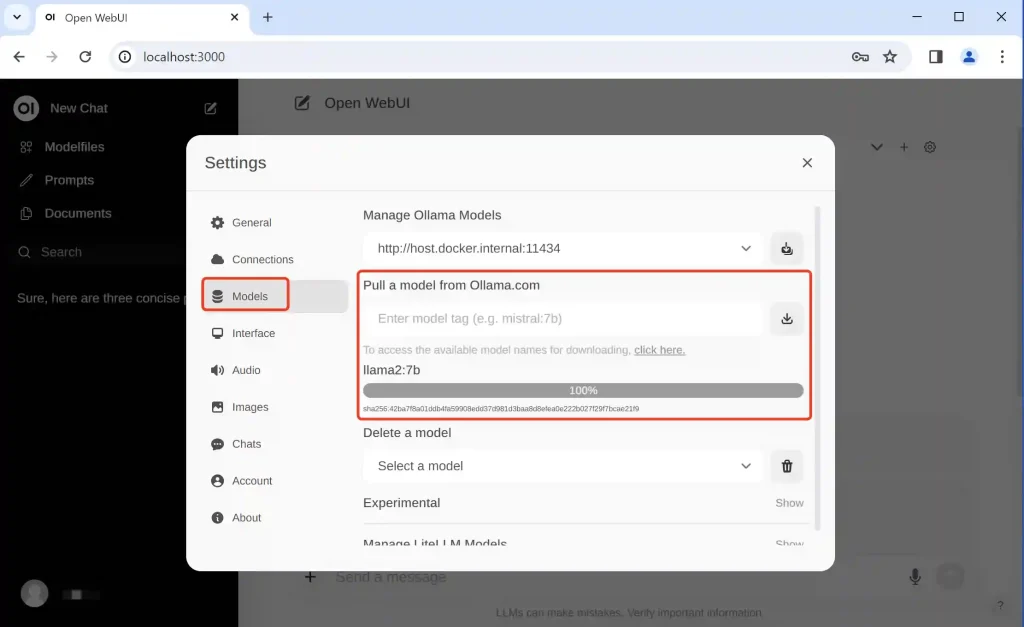
You don’t have to use the command-line chat interface every time.
llama.cpp can also start a local server:
llama serve -hf unsloth/Qwen3.8-27B-GGUF:UD-Q4_K_XL
The local server normally listens on:
http://127.0.0.1:8080
Open that address in your browser.
You should get a local chat interface.
More importantly for developers, llama.cpp provides an OpenAI-compatible API endpoint:
http://127.0.0.1:8080/v1
That means many existing applications can communicate with the local model without requiring a completely different API design.
Step 4: Test the OpenAI-Compatible API
You can test the server from a terminal:
curl http://127.0.0.1:8080/v1/chat/completions \
  -H "Content-Type: application/json" \
  -d '{
    "model": "unsloth/Qwen3.8-27B-GGUF:UD-Q4_K_XL",
    "messages": [
      {
        "role": "user",
        "content": "Write a Python function that retries an HTTP request with exponential backoff."
      }
    ],
    "temperature": 0.7,
    "max_tokens": 1024,
    "stream": false
  }'
If the request returns a generated response, the local API is working.
This is where local deployment becomes more useful than simply running a chatbot. You can now connect the model to scripts, IDE tools, internal applications, or your own automation workflow.
What About Qwen3.8-27B Vision?
Qwen3.8-27B is designed for more than text-only interaction.
However, there is an important distinction between the model’s capabilities and the capabilities exposed by a particular inference stack.
A GGUF build running through llama.cpp may not expose exactly the same multimodal functionality as the official model through another framework.
Support can depend on:
- llama.cpp version
- Model conversion
- Vision projector files
- Client implementation
- API configuration
If image and video input are the main reason you want Qwen3.8-27B, don’t assume that downloading a GGUF file automatically gives you every multimodal feature.
For text, coding, writing, and general local inference, GGUF is considerably simpler.
For a more complete server deployment, the official model with vLLM is worth considering.
Option B: Run the Official FP8 Model with vLLM
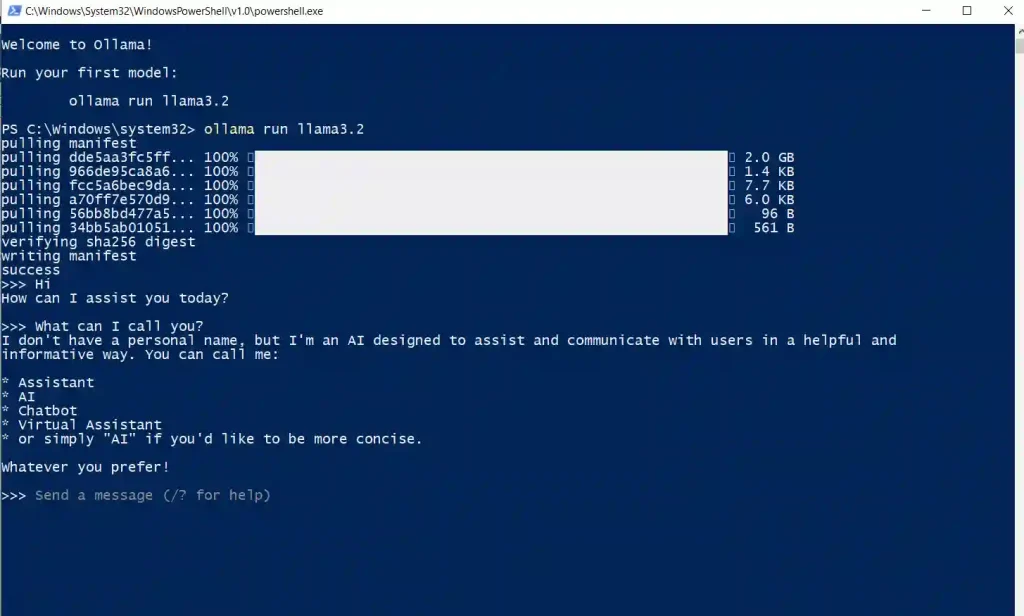
The second approach is aimed at developers with substantially more NVIDIA GPU memory.
The official Qwen3.8-27B FP8 repository provides quantized weights designed for modern inference frameworks, including vLLM.
This setup makes more sense when you want to:
- Build an internal AI service
- Connect an IDE to the model
- Run coding agents
- Provide an API to multiple applications
- Experiment with tool calling
- Control inference parameters directly
A Linux environment is generally the most straightforward choice for this type of deployment.
Step 1: Create a Python Environment
Start by creating an isolated virtual environment:
python3 -m venv .venv
Activate it:
source .venv/bin/activate
Upgrade pip:
pip install -U pip
Then install the required packages:
pip install "vllm>=0.17.0" "transformers>=5.8.0" openai
Before continuing, make sure your NVIDIA driver and CUDA environment are working.
Check the GPU with:
nvidia-smi
If nvidia-smi cannot detect your GPU correctly, fix the NVIDIA environment before troubleshooting Qwen or vLLM.
Step 2: Start the Official FP8 Model
A practical first configuration is to avoid the maximum context length and start with 32K:
vllm serve Qwen/Qwen3.8-27B-FP8 \
  --host 127.0.0.1 \
  --port 8000 \
  --max-model-len 32768 \
  --gpu-memory-utilization 0.90 \
  --kv-cache-dtype fp8 \
  --reasoning-parser qwen3 \
  --enable-auto-tool-choice \
  --tool-call-parser qwen3_coder
The important setting here is:
--max-model-len 32768
It is tempting to replace this immediately with the model’s maximum supported context. Resist that temptation.
First get a stable server running.
Then increase the context gradually while monitoring GPU memory.
Running Across Multiple GPUs
If you have multiple suitable NVIDIA GPUs, tensor parallelism can distribute the model across them.
For two GPUs:
--tensor-parallel-size 2
For four:
--tensor-parallel-size 4
The number should correspond to the GPUs you actually intend to use.
Multiple GPUs don’t automatically make every workload faster. Communication between GPUs introduces overhead, so the actual benefit depends on hardware, workload, context size, and concurrency.
Step 3: Test the vLLM API
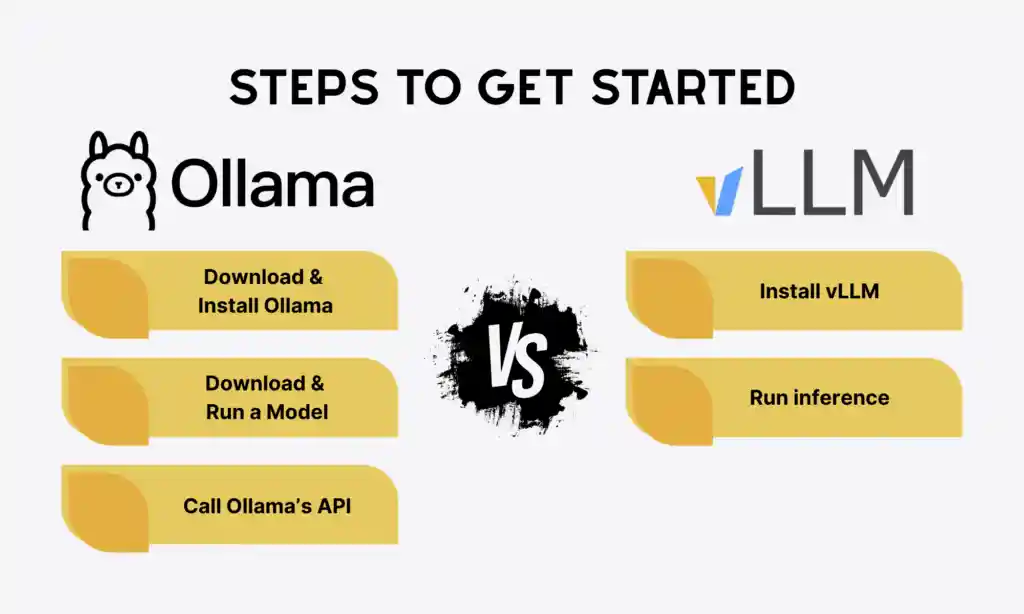
Once vLLM starts successfully, test the OpenAI-compatible endpoint:
curl http://127.0.0.1:8000/v1/chat/completions \
  -H "Content-Type: application/json" \
  -d '{
    "model": "Qwen/Qwen3.8-27B-FP8",
    "messages": [
      {
        "role": "user",
        "content": "Analyze this software project architecture and identify three technical debts that should be addressed first."
      }
    ],
    "temperature": 1.0,
    "top_p": 0.95,
    "max_tokens": 2048,
    "chat_template_kwargs": {
      "enable_thinking": true,
      "reasoning_effort": "medium"
    }
  }'
Qwen’s model family supports both thinking and non-thinking workflows, and the exact generation settings should be chosen according to the mode you’re using rather than blindly mixing parameters between them. The Qwen documentation similarly provides separate examples for thinking and non-thinking generation.
Thinking Mode vs Non-Thinking Mode
For difficult coding tasks, reasoning can be useful.
For example:
- Debugging
- Architecture analysis
- Complex refactoring
- Algorithm design
- Multi-step research
For simple tasks, however, extended reasoning can waste time.
If you only need summarization, rewriting, or straightforward questions, you can disable thinking:
{
  "temperature": 0.7,
  "top_p": 0.8,
  "presence_penalty": 1.5,
  "chat_template_kwargs": {
    "enable_thinking": false
  }
}
The best settings depend on the model version and inference framework. If an updated Qwen model card provides newer sampling recommendations, follow those rather than treating an older configuration as permanent.
Connect Qwen3.8-27B to an IDE or Your Own Application
Once the server is running, you don’t necessarily need a dedicated Qwen client.
Both deployment methods expose an OpenAI-compatible API.
For llama.cpp:
http://127.0.0.1:8080/v1
For vLLM:
http://127.0.0.1:8000/v1
Your client generally needs three things:
Base URL
API Key
Model ID
For a local server without authentication, some clients accept a placeholder such as:
EMPTY
Don’t guess the model name.
Ask the server which models it actually exposes:
curl http://127.0.0.1:8000/v1/models
Copy the returned model ID into your application.
This avoids one of the most common local-API errors:
model not found
Five Problems You Are Likely to Encounter
1. The Model Immediately Runs Out of Memory
The first thing to reduce is the context length.
Try:
32K → 16K → 8K
If that still isn’t enough, use a smaller GGUF quantization.
Remember that runtime memory includes more than the model weights. KV cache, framework overhead, CUDA kernels, and multimodal components all consume resources.
2. Generation Is Much Slower Than Expected
Check whether part of the model has been offloaded to the CPU.
For NVIDIA systems, monitor:
nvidia-smi
For llama.cpp, inspect its startup output carefully.
A 27B dense model also behaves differently from a small mixture-of-experts model. Every generated token still requires substantial computation, so don’t compare its speed directly with a much smaller or sparsely activated model.
3. Output Repeats or Looks Strange
First update your inference framework.
Check for newer versions of:
- llama.cpp
- vLLM
- Transformers
Then return to the model’s recommended generation settings.
Changing several sampling parameters at once makes troubleshooting harder.
4. The First Launch Appears to Hang
The first launch may simply be downloading tens of gigabytes of model data.
Check:
- Terminal output
- Network activity
- Disk usage
- GPU memory
- CPU activity
Don’t immediately terminate and restart the process repeatedly.
A large model can take a while to download, load, and initialize.
5. You Accidentally Expose the API to the Internet
This is one of the most important configuration details.
The examples in this guide use:
127.0.0.1
That means the service is intended for local access.
If you change the server to:
0.0.0.0
you may expose it to other machines or potentially the wider network, depending on your firewall and routing configuration.
If you need remote access, configure authentication, firewall rules, and a properly secured reverse proxy.
A locally running model is not automatically a secure public API.
What About Completely Offline Use?
Local inference and offline inference are related, but they’re not exactly the same thing.
After downloading the model weights, you can run inference without sending prompts to a cloud AI provider.
However, your application can still access the internet if it receives external URLs or uses online services.
For example, if a multimodal client receives an image URL, the server may need network access to retrieve that image.
For a genuinely offline setup:
- Download all required model files beforehand.
- Keep the model files locally.
- Use local image files when testing vision capabilities.
- Avoid external URL-based inputs.
- Disable unnecessary network access.
This distinction matters if you’re using a local model for confidential source code or private company data.
Which Qwen3.8-27B Setup Should You Choose?
For most individual users, the choice is fairly straightforward.
16 GB GPU
Start with a smaller GGUF quantization.
Expect compromises in speed and quality.
24 GB GPU
Use a Q4 GGUF build with llama.cpp.
This is probably the easiest entry point for a high-end consumer GPU.
32 GB Apple Silicon
A Q4 GGUF model is a reasonable starting point because Apple unified memory can be used by both the system and the model.
48 GB or More NVIDIA VRAM
The official FP8 model with vLLM becomes much more interesting.
This is the configuration I’d choose for API development, agents, IDE integration, and more demanding workloads.
CPU Only
It can work with enough system RAM, but don’t expect a desktop-class interactive experience.
CPU inference is useful for testing and experimentation. If your main goal is heavy coding or agent workloads, GPU acceleration makes a very noticeable difference.
Final Thoughts
Qwen3.8-27B sits in an interesting part of the local AI market.
It’s too large to treat like a lightweight model that can run comfortably on almost any laptop, but quantized versions make it accessible to people with high-end consumer hardware.
For the simplest setup, GGUF + llama.cpp is the route I’d recommend. It requires less infrastructure and works well for local chat, coding, writing, and experimentation.
If you’re building something more serious—an internal API, coding assistant, agent platform, or development service—official FP8 + vLLM is the more appropriate direction when you have enough NVIDIA VRAM.
The most useful part of running a model locally isn’t simply avoiding an API bill.
You gain control over the model files, inference parameters, context length, API behavior, and where your prompts and source code are processed.
Getting Qwen3.8-27B to start is only the first step. The more interesting experiment is what happens after you connect it to your editor, scripts, applications, and development workflow.