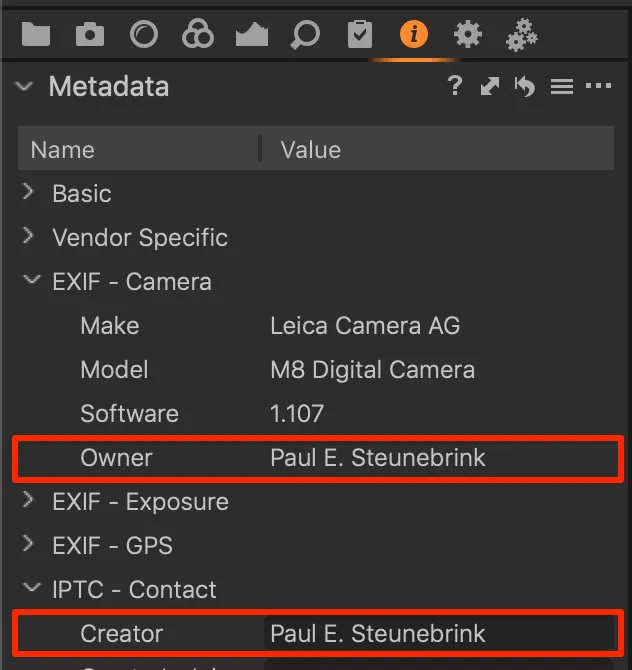
A HEIC image can look completely ordinary when you open it on your computer, but the file may contain much more information than the visible picture.
I ran into this while moving photos from an iPhone to a Windows PC. The image itself looked fine, but when I checked the file more closely, it contained details about the camera, lens, exposure, image dimensions, and—in some cases—the exact GPS coordinates where the photo was taken.
This information is called EXIF metadata. It is useful when organizing a personal photo library or troubleshooting camera problems, but it can also reveal private information if you share the original file with someone else.
The good news is that you don’t need to convert a HEIC image to JPEG just to inspect its metadata. You can read the metadata directly from the original HEIC file.
This guide shows several practical ways to inspect HEIC EXIF data, including camera settings, timestamps, software information, and GPS coordinates.
What Is EXIF Metadata?
EXIF stands for Exchangeable Image File Format. It is metadata stored inside an image file by a camera, smartphone, or image-processing application.
Depending on the device and its settings, a photo can contain information such as:
- Camera manufacturer
- Camera model
- Lens information
- Exposure time
- Aperture
- ISO
- Focal length
- Flash information
- Image dimensions
- Date and time
- Software used to process the image
- GPS latitude and longitude
Not every HEIC file contains all of these fields. The available information depends on the device, camera application, and privacy settings.
Why HEIC Files Can Contain More Information Than Expected
HEIC is commonly used by Apple devices because it provides good image quality while using less storage space than many traditional formats.
When an iPhone takes a photo, the image file may include both the visual image and additional metadata.
For example, an original iPhone photo may contain:
Camera Model: iPhone
Lens: Wide Camera
ISO: 100
Exposure Time: 1/120 sec
Focal Length: 26 mm
GPS Latitude: 35.xxxxx
GPS Longitude: 139.xxxxx
The exact fields vary from one image to another.
This is why checking the original HEIC file is useful before uploading or sharing it.
Method 1: Check HEIC Metadata in Windows
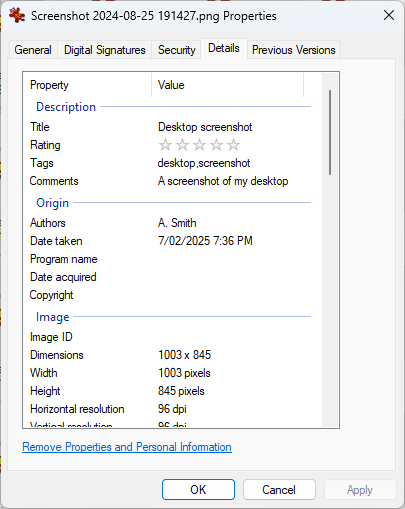
Windows can display some image information through File Explorer, although the available EXIF fields can be limited.
Step 1: Locate the HEIC Image
Open File Explorer and navigate to the folder containing your image.
For example:
File Explorer > Pictures > iPhone PhotosFind the .HEIC file you want to inspect.
Step 2: Open the File Properties
Right-click the HEIC image and select:
Properties
Then select the:
Details
tab.
You may see information under categories such as:
- Image
- Camera
- Advanced photo
- File
Depending on the file, Windows may display the camera manufacturer, camera model, dimensions, date taken, and other information.
However, Windows does not always show every metadata field stored in the file.
For detailed analysis, a dedicated metadata reader is more useful.
Method 2: Extract HEIC EXIF Data with ExifTool

For anyone who regularly works with images, ExifTool is one of the most useful options.
It is a command-line utility designed to read and write metadata from many different file formats, including HEIC and HEIF.
You can use it without changing the original image.
Step 1: Install ExifTool
Download ExifTool from its official distribution and install or extract it according to the Windows version you are using.
After installation, open Command Prompt.
Step 2: Navigate to Your Image Folder
Suppose your HEIC file is stored here:
C:\Users\YourName\Pictures\iPhoneOpen Command Prompt and run:
cd "C:\Users\YourName\Pictures\iPhone"You can then check the files in the directory:
dirLook for your .HEIC file.
Step 3: Display the Metadata
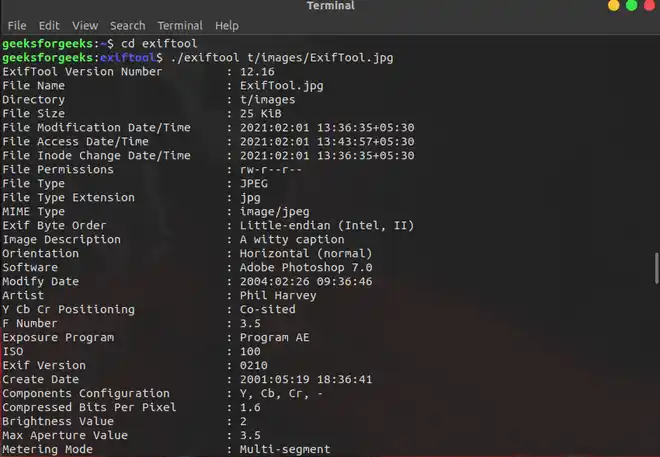
Run ExifTool against the image:
exiftool "IMG_1234.HEIC"ExifTool will return the metadata it can find.
You may see information similar to:
File Name                       : IMG_1234.HEIC
File Size                       : 3.2 MB
Image Width                     : 4032
Image Height                    : 3024
Make                            : Apple
Camera Model Name               : iPhone
Exposure Time                   : 1/120
F Number                        : 1.6
ISO                             : 80
Focal Length                    : 4.2 mm
Date/Time Original              : 2026:07:20 15:32:18
GPS Latitude                    : 35.xxxxx
GPS Longitude                   : 139.xxxxx
The actual values will obviously depend on your photo.
How to Find GPS Location Information
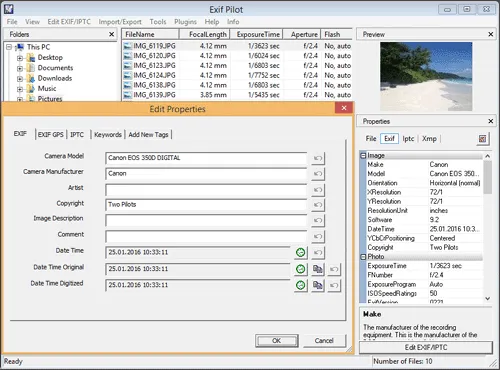
GPS metadata deserves special attention because it can reveal where a photo was taken.
Run:
exiftool "IMG_1234.HEIC"Then look for fields containing:
GPS
Latitude
Longitude
Position
Location
If GPS information is present, ExifTool may display latitude and longitude separately or provide a combined GPS position.
You can also ask ExifTool to show only GPS-related information:
exiftool -gps* "IMG_1234.HEIC"If the image contains GPS data, you should see the relevant coordinates.
If nothing is returned, the photo may not contain GPS metadata.
How to Check Camera Settings
EXIF data can also be useful for photographers who want to understand how a particular photo was captured.
Search for fields such as:
- ISO
- Exposure Time
- F Number
- Focal Length
- Lens Model
- White Balance
- Flash
- Exposure Compensation
For example:
exiftool -ISO -ExposureTime -FNumber -FocalLength "IMG_1234.HEIC"This produces a much shorter result than displaying every available metadata field.
You can use this technique to compare settings between two photographs.
Check Multiple HEIC Images at Once
If you have hundreds of photos, checking them individually isn’t practical.
ExifTool can process multiple files.
For example:
exiftool -Make -Model -DateTimeOriginal -GPSPosition *.HEICThis can provide a quick overview of the camera and location information contained in multiple HEIC files.
You can also export metadata to a text file:
exiftool *.HEIC > metadata.txtThis is useful when you’re organizing a large photo collection.
Does Converting HEIC to JPEG Remove EXIF Data?
Not necessarily.
This is an important misconception.
When an image is converted from HEIC to JPEG, the software performing the conversion decides which metadata is preserved.
Some applications preserve EXIF information. Others remove part or all of it.
Therefore, converting a HEIC image to JPEG should not be considered a reliable way to remove private metadata.
If your goal is privacy, inspect and remove the metadata directly.
How to Protect Your Location Privacy
Before uploading an original photo to a public website, social platform, forum, or marketplace, consider whether it contains GPS information.
A photo taken at home could potentially reveal your location.
A safer workflow is:
- Keep the original HEIC file privately.
- Create a copy for sharing.
- Remove unnecessary metadata from the copy.
- Check the resulting file again.
- Upload the cleaned version.
Never modify your only original if the metadata may be useful later.
Common Mistakes and Troubleshooting
Windows Shows Very Little Information
This does not necessarily mean the HEIC file has no metadata.
Windows File Explorer only exposes a portion of the available information.
Use a dedicated metadata reader such as ExifTool for a more complete result.
No GPS Information Appears
Several things can cause this.
Location services may have been disabled when the photo was taken, the camera application may not have saved GPS information, or the metadata may have been removed during editing or sharing.
Try:
exiftool -gps* "IMG_1234.HEIC"If there is no output, there may simply be no GPS metadata remaining.
The HEIC File Won’t Open in Windows
Opening the image and reading its metadata are separate issues.
Windows may require additional HEIF/HEVC support to display certain HEIC files, while specialized metadata tools can still inspect the file.
Don’t immediately convert the original image just because Windows cannot display its preview.
Metadata Changed After Editing
Photo-editing applications can remove or rewrite EXIF information when exporting an image.
If you need the original camera information, inspect the original file rather than an edited copy.
Final Thoughts
HEIC files can contain considerably more information than what you see in the photograph itself. Camera settings can help photographers understand how an image was captured, while GPS metadata can be useful for organizing photos—but it can also expose private locations.
For a quick check, Windows File Explorer is enough. For a detailed inspection, ExifTool provides much more information and makes it possible to filter specific fields such as GPS coordinates, ISO, exposure time, and camera model.
The most important habit is to check the metadata before sharing original photos publicly. A picture may show what you intended to share, while its metadata can reveal information you never meant to disclose.