You probably don’t think much about privacy when you open your email, search Google, upload a file, or sign in to a new website.
Most people assume their phone and computer are relatively secure because they have a password, fingerprint lock, antivirus software, or a VPN.
But device security and privacy are not the same thing.
A laptop can be completely free of malware while dozens of websites, advertisers, apps, and online services still collect information about what you do. Your email address can end up in marketing databases. A password reused across several websites can become a serious problem after one service suffers a breach. Browser fingerprinting can identify your device even when you block traditional cookies.
I’ve seen this distinction become especially obvious when troubleshooting accounts and web applications. A machine can be technically “clean” while the user’s digital footprint is surprisingly large.
The good news is that privacy doesn’t require becoming an expert in network security.
There are practical tools for email, messaging, passwords, browsers, VPNs, cloud storage, file encryption, and digital cleanup.
Here are 25 worth knowing.
1. Private Email and Communication
Email and messaging accounts often become the center of your digital identity. Protecting them should be one of the first steps.
Proton Mail
Proton Mail provides encrypted email with a free plan.
It is particularly useful if you want an alternative to conventional email providers and don’t want your entire digital identity tied to an advertising ecosystem.
Best for: private email and everyday communication.
Signal
Signal is a privacy-focused messaging application with end-to-end encrypted conversations.
For sensitive conversations, using an encrypted messenger is generally better than assuming ordinary SMS or standard messaging is private.
Best for: private messaging and calls.
SimpleLogin
SimpleLogin lets you create email aliases that forward messages to your real mailbox.
Instead of giving every website your primary email address, you can create a separate alias.
If a website starts sending unwanted mail, you can disable that alias without changing your primary email address.
Best for: reducing spam and limiting exposure of your real email address.
Temporary Email Services
Services such as Maildrop, Guerrilla Mail, and 10 Minute Mail provide temporary email addresses.
They’re useful for low-risk situations such as testing a website that requires an email address.
Don’t use temporary email for banking, password recovery, important accounts, or anything you may need to access later.
2. Passwords and Account Security
Privacy tools cannot compensate for weak passwords.
A compromised password can give an attacker access to your email, cloud storage, social accounts, and other services.
Bitwarden
Bitwarden is an open-source password manager.
Instead of trying to remember dozens of passwords, you can generate unique passwords for individual websites and store them securely.
A simple strategy is:
One unique password
        ↓
One account
        ↓
Stored in password manager
        ↓
Protected by strong master password + MFA
Best for: password management and unique credentials.
Authy and Aegis
Two-factor authentication adds another security layer after your password.
Authy and Aegis can be used for time-based authentication codes.
If an attacker obtains your password, a second authentication factor can make account takeover considerably harder.
Whenever possible, enable MFA on your email, password manager, financial accounts, and other important services.
Have I Been Pwned
Have I Been Pwned lets you check whether an email address has appeared in known data breaches.
If your address appears, don’t panic. The important step is to determine which service was affected and change the password if necessary.
Never reuse that password on another website.
3. Private Browsing and Search
Your browser is one of the main interfaces between you and the internet.
DuckDuckGo
DuckDuckGo is a search engine that emphasizes privacy and reduced tracking.
It can be a useful alternative if you don’t want every search associated with your normal Google account.
Startpage
Startpage provides search results sourced from major search providers while adding privacy protections.
It’s useful for people who like familiar search quality but want a privacy-focused intermediary.
Tor Browser
Tor Browser routes traffic through the Tor network.
It can provide significantly stronger anonymity than ordinary browser connections, but it isn’t magic.
Tor can be slower, some websites block it, and logging into your personal accounts can obviously connect your activity to your identity.
Best for: situations where anonymity is more important than convenience.
uBlock Origin and Privacy Badger
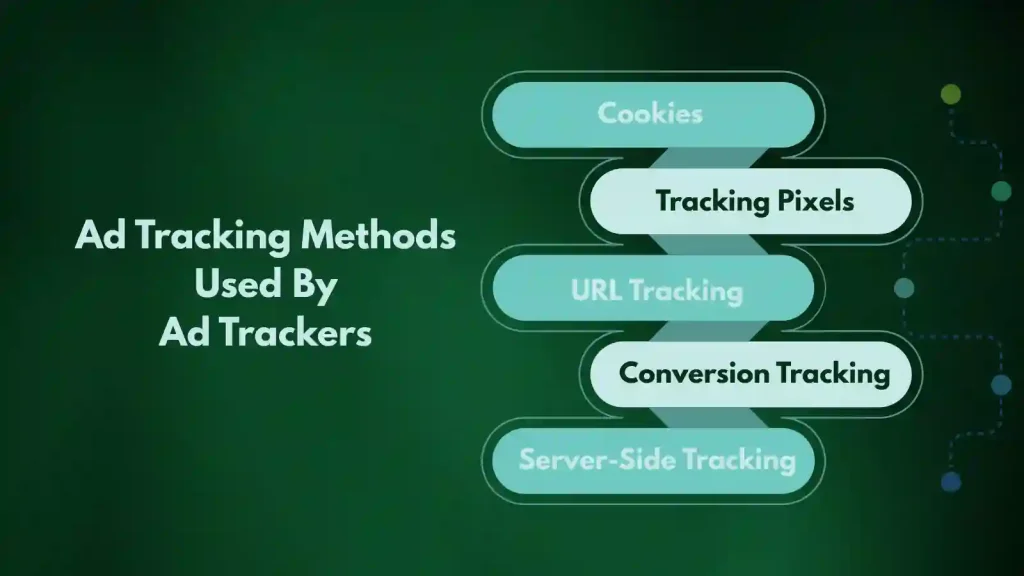
Content blockers can reduce advertisements, tracking scripts, and other unwanted browser activity.
uBlock Origin is particularly useful for blocking network requests before they load.
Privacy Badger, developed by the Electronic Frontier Foundation, focuses specifically on tracking protection.
Don’t install dozens of overlapping browser extensions. Every extension you install becomes another piece of software that needs to be trusted.
BrowserLeaks and Cover Your Tracks
BrowserLeaks provides tests for information that a browser may expose.
The EFF’s Cover Your Tracks tool can also show how effectively your browser resists tracking techniques.
These tools are particularly useful because they let you see what your browser actually reveals instead of relying on assumptions.
4. VPN Services
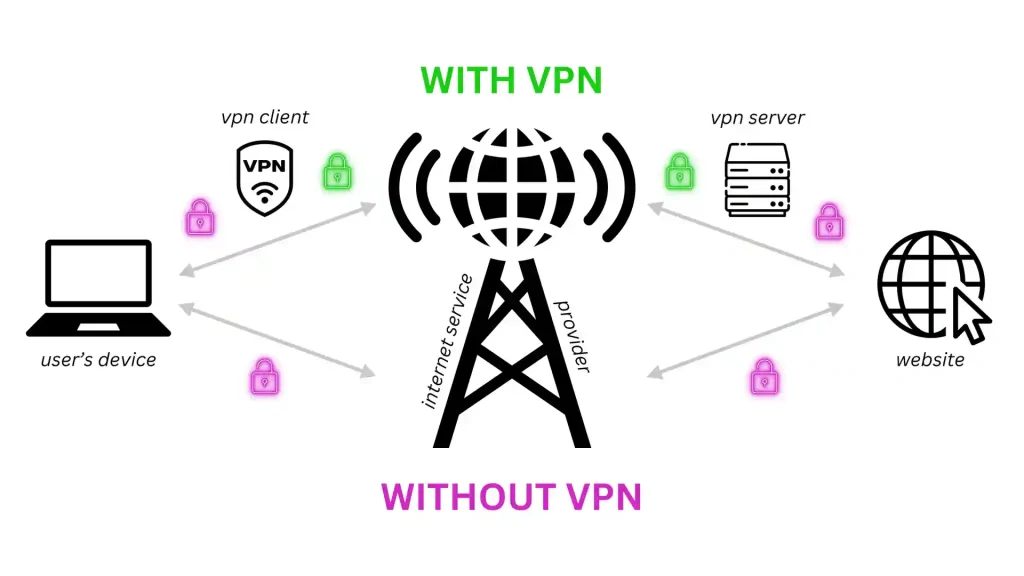
A VPN encrypts the connection between your device and the VPN server.
It can be useful on untrusted networks and can hide your IP address from websites, but remember one important rule:
A VPN doesn’t make you anonymous.
You are moving trust from your internet provider to the VPN provider.
Mullvad
Mullvad is known for its privacy-focused approach.
Best for: users who prioritize privacy over convenience.
Proton VPN
Proton VPN comes from the same company behind Proton Mail and offers a free tier.
Best for: users who want a privacy-focused VPN from an established privacy company.
Windscribe
Windscribe offers VPN services with a free allowance, making it useful for occasional browsing and testing.
Best for: casual users who don’t need constant VPN usage.
5. Encrypting Files and Cloud Storage
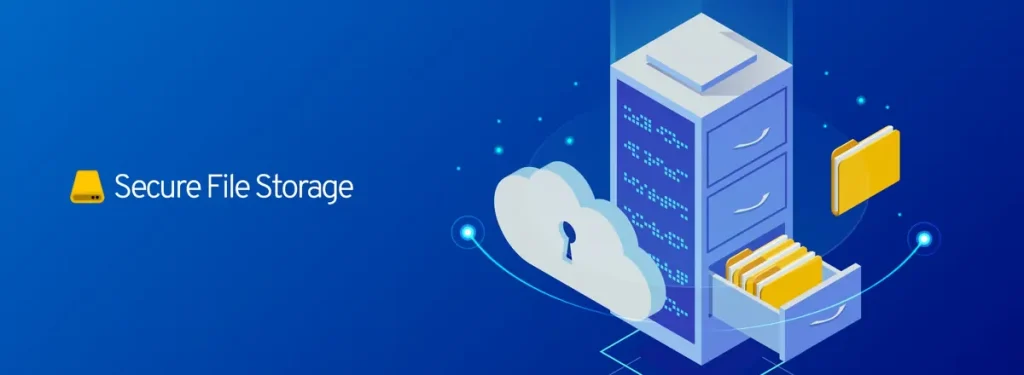
Cloud storage is convenient, but uploading a file doesn’t automatically mean that nobody else can access its contents.
Cryptomator
Cryptomator encrypts files locally before they are synchronized to cloud storage.
This is useful when you want to use services such as cloud drives without leaving sensitive files in readable form.
VeraCrypt
VeraCrypt can create encrypted containers and encrypt storage.
It’s useful for protecting sensitive documents if a laptop, external drive, or USB device is lost or stolen.
SpiderOak
SpiderOak provides privacy-oriented backup and storage services.
The exact features and pricing can change, so check the current product documentation before relying on it for backups.
6. Cleaning Up Your Digital Footprint
Privacy isn’t only about preventing future tracking.
It’s also about removing information you no longer need.
JustDeleteMe
JustDeleteMe collects links and instructions for deleting accounts from many online services.
Instead of searching through a company’s website for the cancellation page, you can start from one place.
Deseat.me
Deseat.me is designed to help users identify online accounts associated with their email address and remove unwanted accounts.
Availability and functionality can change, so verify the current service before entering any account information.
7. Other Useful Privacy and Security Tools
PrivNote
PrivNote provides self-destructing notes.
It can be useful for sharing information that doesn’t need to remain available indefinitely.
Don’t treat a disappearing message as protection against screenshots or someone photographing the screen.
OnionShare
OnionShare uses the Tor network to facilitate private file sharing.
It’s particularly interesting when you want to transfer files without relying on a conventional file-sharing platform.
VirusTotal
VirusTotal allows users to check files and URLs against multiple security engines.
There’s an important privacy consideration, though: don’t upload confidential documents simply because you want to scan them.
A sensitive document can contain information you don’t want to send to an external analysis service.
Malwarebytes
Malwarebytes provides malware detection and removal tools.
Privacy isn’t only about companies collecting data. Malware, spyware, and malicious browser extensions can also compromise personal information.
Privacy.com
Privacy.com provides virtual card functionality for eligible users.
Virtual cards can help limit the exposure of your primary payment details when making online purchases.
Availability depends on location and eligibility, so check the current service terms before signing up.
How to Build a Practical Privacy Setup
You don’t need all 25 tools.
For most people, I’d start with a small foundation:
Step 1: Protect your accounts
Use a password manager such as Bitwarden and enable MFA on important accounts.
Step 2: Protect your email
Consider a privacy-focused provider or use aliases so your primary address isn’t exposed everywhere.
Step 3: Improve your browser
Install a reputable content blocker and review what your browser exposes through a privacy testing tool.
Step 4: Encrypt sensitive files
Use Cryptomator for cloud-stored files or VeraCrypt for local encrypted storage.
Step 5: Review old accounts
Use account-deletion resources to remove services you no longer use.
Step 6: Add a VPN when appropriate
A VPN can be useful on public Wi-Fi and in situations where you don’t want websites to see your normal IP address.
The important part is not collecting privacy tools like trophies.
It’s using the right tool for the right problem.
Common Mistakes and Troubleshooting
Mistake 1: Assuming a VPN makes you anonymous
It doesn’t.
Your VPN provider can still see certain connection information, and websites can identify you through accounts, cookies, browser characteristics, and other signals.
Mistake 2: Using a temporary email for important accounts
Temporary addresses can disappear.
Use a permanent address or an alias for accounts that need password recovery.
Mistake 3: Uploading private documents to online scanners
Security scanning services can involve sending files to remote infrastructure.
For sensitive documents, consider a local antivirus scanner instead.
Mistake 4: Installing too many privacy extensions
More extensions don’t automatically mean more privacy.
Keep your browser setup simple and use reputable, actively maintained software.
Mistake 5: Reusing passwords
One leaked password can become the key to several accounts.
Use unique passwords, especially for email, financial services, and your password manager.
Privacy Is a Habit, Not a Paranoia
You don’t need to disappear from the internet to improve your privacy.
Start with the basics: unique passwords, MFA, encrypted communication, sensible browser protection, secure file storage, and regular cleanup of old accounts.
The biggest improvement often comes from a handful of small changes rather than installing every privacy tool available.
Your phone and computer don’t need to be treated like a secret bunker.
But your personal information deserves more protection than simply assuming nobody is looking.