There is one Google account page that most people should check at least once, especially if they have been using the same Google account for years.
I learned this the hard way while checking account access on a device I no longer used. The account itself looked fine, but the device list contained old sessions I had completely forgotten about. Nothing turned out to be an actual security incident, but it was a good reminder: a Google account can accumulate years of old devices, sessions, and third-party connections.
You may recognize everything on the list.
Or you may see something and think:
“Wait. What is that doing there?”
That is exactly why this check is worth a few minutes of your time.
The process has two parts:
- Check which devices and sessions can access your Google account.
- Check which apps and services are still connected to it.
Here’s how to do both.
1. Check Where Your Google Account Is Signed In
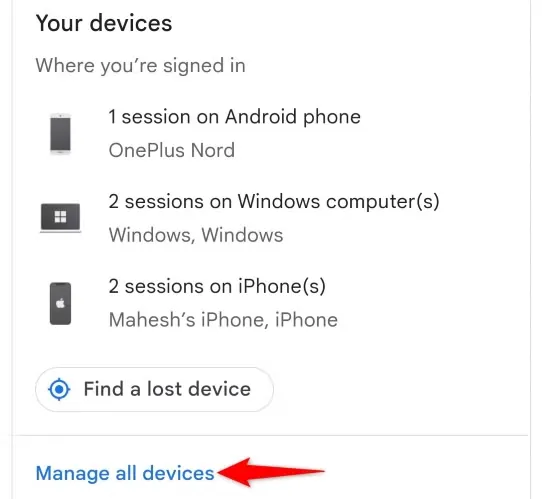
Start with your Google Account security settings.
On a desktop browser, go to:
Google Account > Security > Your devices > Manage all devices
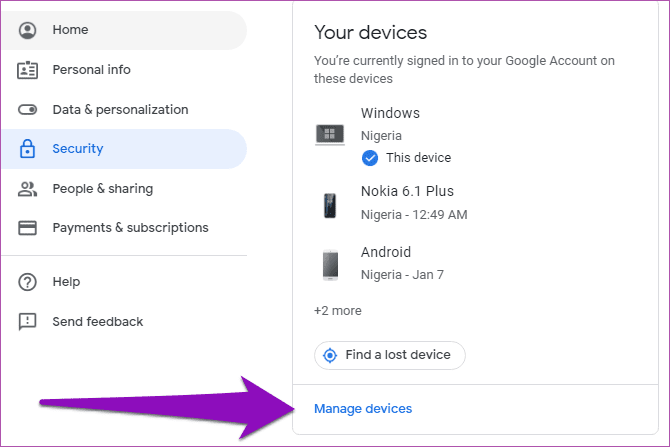
On the Google Account security page, Google shows devices where your account is currently signed in or has recently been used.
You may see entries such as:
- iPhone
- Android phone
- Windows PC
- Mac
- Tablet
- Chrome browser sessions
- Other devices associated with your account
Don’t panic if the list contains more entries than you expected.
An account that you have used for several years can accumulate quite a few devices and sessions.
Why old devices can appear
Maybe you replaced your phone two years ago.
Maybe you sold an old laptop.
Maybe you used your Google account on a computer at work and haven’t touched it since.
Those old entries are exactly what you want to investigate.
But there is an important detail.
2. Don’t Judge a Device by Its Name Alone
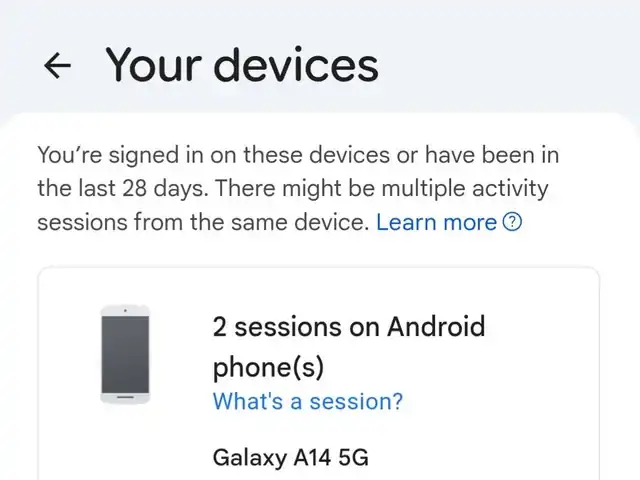
Seeing two entries called “iPhone” does not automatically mean someone has accessed your account.
Google can show multiple sessions associated with the same physical device or browser environment.
The same thing can happen with computers.
For example, you might see several entries containing:
- iPhone
- Windows
- Chrome
- Android
Instead of assuming the worst, open each entry and examine the available details.
Look for information such as the device type, recent activity, and approximate location.
If everything matches a device you recognize, there may be nothing to worry about.
If something doesn’t make sense, investigate it before taking action.
3. Remove Devices You No Longer Use
Now look specifically for devices that should no longer have access.
For example:
- A phone you sold
- A lost phone
- An old computer you gave away
- A work computer you no longer use
- A device you don’t recognize
Open the device entry and look for the option to sign out.
The basic navigation is:
Google Account > Security > Your devices > Manage all devices > Select device > Sign out
If the device genuinely no longer belongs to you, signing it out is a sensible cleanup step.
You don’t need to remove every old-looking entry just because it appears in the list. The goal is to remove access you no longer want, not to make the list as short as possible.
And that’s only half of the check.
4. Think About All Those “Sign in with Google” Buttons
Over the years, you’ve probably used “Sign in with Google” dozens of times.
A new service asks you to create an account.
Instead of entering an email address and creating another password, you click:
Continue with Google
It’s convenient.
But after five or ten years, you may have forgotten how many services you’ve connected to your Google account.
Some of those services may still have access.
That’s why the second check is just as important as the device list.
5. Review Your Third-Party Connections
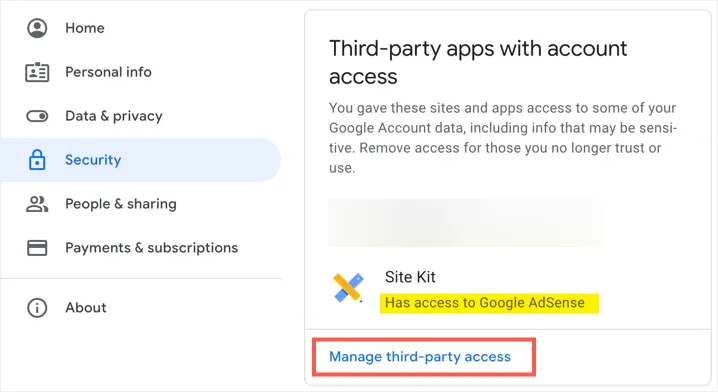
Go to your Google Account and open the page for third-party connections.
A typical path is:
Google Account > Security > Your connections to third-party apps & services
Depending on Google’s current account interface, the wording or exact location may change slightly.
You’ll see services and applications that have some kind of connection with your Google account.
Now go through the list carefully.
Don’t just look at the application names.
Open the entries that you don’t immediately recognize and check what kind of access they have.
6. Not Every Google Connection Has the Same Permission
This is an easy detail to overlook.
A service that uses Google for authentication isn’t necessarily getting unrestricted access to your Google account.
Third-party applications can request access to specific Google services or data, depending on what they need and what you approved.
For example, permissions may involve services such as:
- Gmail
- Google Drive
- Google Calendar
- Google Photos
- Google Contacts
The important question isn’t simply:
“Is this app connected to my Google account?”
Instead, ask:
“What exactly did I allow this app to access?”
That’s a much more useful security question.
7. Some Permissions Are More Powerful Than Others
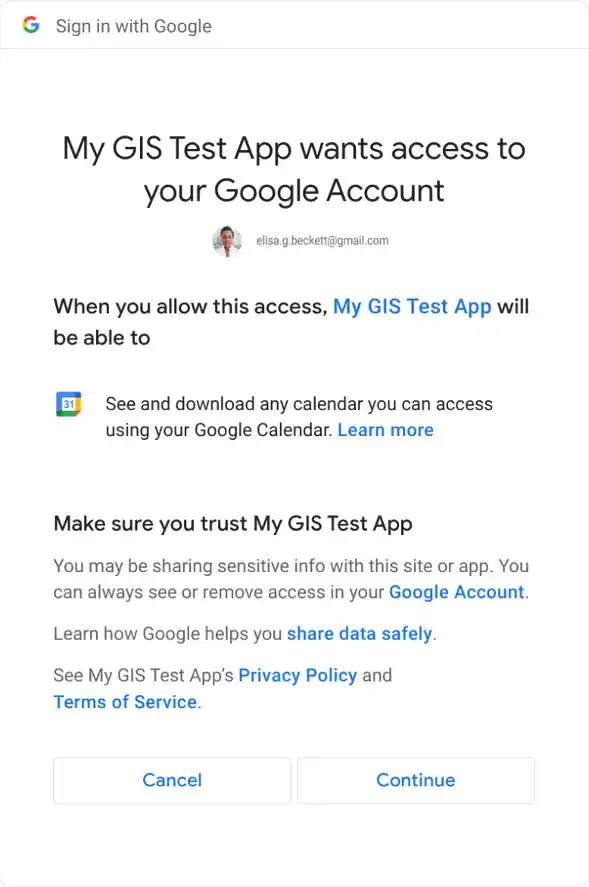
When reviewing a connection, pay attention to the actual permissions rather than just the application name.
Depending on the service and authorization you granted, an application may request permission to perform actions such as:
- View information
- Copy information
- Create information
- Edit information
- Delete information
That doesn’t mean every third-party application can perform all of these actions.
It means that permissions matter.
For example, a simple application that only needs your basic account information is very different from a service that needs access to files in Google Drive.
If you don’t remember why you granted a permission, that’s a good reason to investigate it.
8. Found an App You Don’t Remember?
Suppose you open the list and find an application you haven’t used in years.
Don’t immediately assume it’s malicious.
First, open the connection and read the information Google provides about what the service can access.
Ask yourself:
- Do I still use this service?
- Do I recognize the company?
- Why did I originally connect it?
- Does it still need access?
- Does the permission level make sense?
If the answer is no, you can remove the connection.
The general process is:
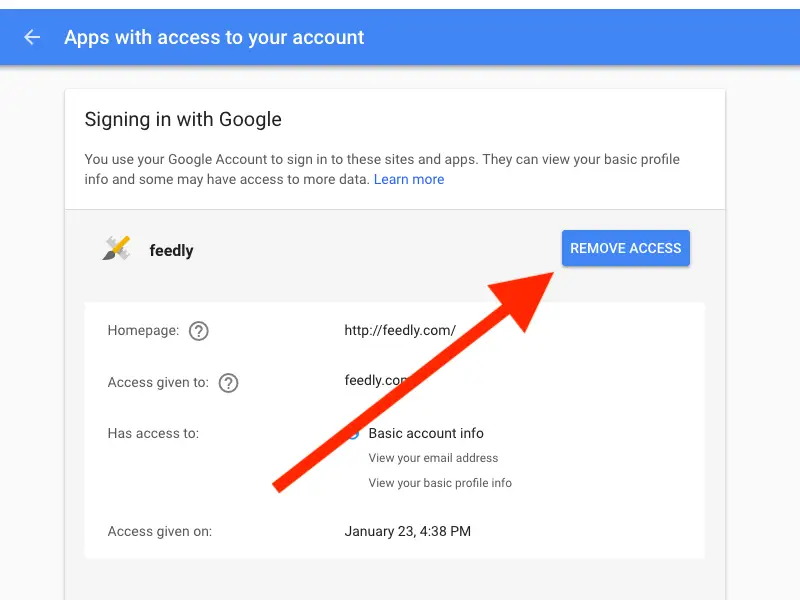
Google Account > Security > Third-party connections > Select app or service > Remove access
After you confirm the removal, Google will no longer allow that connection to use the permissions you previously granted.
9. Removing Access Doesn’t Necessarily Delete Existing Data
This is one of the most important things to understand.
Removing a third-party application’s access to your Google account does not necessarily mean that the company has deleted information it already received.
For example, imagine you connected an application several years ago and allowed it to access certain information.
You later revoke its Google access.
That stops the authorization, but it doesn’t automatically erase copies of information the company may already have stored on its own systems.
If you want that information deleted, you may need to contact the third-party company directly and follow its data deletion process.
So think of these as two different actions:
Revoke Google access ≠ Delete the company’s existing data
That’s an important distinction when cleaning up old account connections.
10. Don’t Remove Everything Just Because You Can
There is also a reason not to go through the list and delete every connection.
If you use “Sign in with Google” to access a service and remove that connection, you may no longer be able to use Google to automatically sign in there.
Some services may also stop certain features from working if their authorized access is removed.
Before removing something, make sure you understand what it is.
The objective isn’t:
“Delete everything.”
The objective is:
“Know who has access to my account and why.”
That’s a much better approach to account security.
A Simple 5-Minute Google Account Security Check
If you haven’t reviewed your account recently, use this quick checklist.
Check 1: Devices
Go to:
Google Account > Security > Your devices > Manage all devices
Look for:
- Devices you no longer own
- Lost devices
- Old computers
- Unfamiliar devices
- Sessions that don’t make sense
Sign out of devices that should no longer have access.
Check 2: Third-Party Connections
Then go to:
Google Account > Security > Third-party connections
Review the applications and services.
For each one, ask:
Do I recognize it?
Do I still use it?
What information can it access?
Does it still need that access?
If the answer is no, consider removing the connection.
Common Mistakes and Troubleshooting
“I see the same device twice. Is my account hacked?”
Not necessarily.
Multiple sessions can be associated with the same device or browser environment. Check the available activity and device information before assuming someone has accessed your account.
“I don’t recognize a location.”
Location information isn’t always perfectly precise. IP-based location can sometimes show a nearby city or a different location from where you physically are.
Don’t rely on location alone. Consider the device, browser, activity time, and whether you recognize the session.
“I removed an app. Does that delete my data?”
Not necessarily.
Removing the Google connection stops the authorized access, but the third party may already have stored information. Contact the company directly if you want existing data deleted.
“Should I remove every old connection?”
No.
First determine what the connection is used for. Removing an authentication connection can prevent you from using “Sign in with Google” with that service or can disable related features.
“I found a device I definitely don’t recognize.”
Take it seriously.
Sign the device out and review your account’s security activity. If you suspect unauthorized access, change your Google password and make sure two-step verification is enabled.
Final Check: Know Who Has Access
A Google account that you’ve used for five or ten years can contain a surprising amount of history.
Old phones.
Old computers.
Old browser sessions.
Apps you tried once.
Services you forgot about.
Permissions you accepted without thinking twice.
That doesn’t mean your account is compromised. It simply means that account access tends to accumulate over time.
So take a few minutes and check both sides:
1. Which devices and sessions can access your Google account?
2. Which applications and services are still connected, and what permissions did you give them?
You may discover that everything is perfectly fine.
That’s actually the best outcome.
Because the point of this check isn’t to find something scary. It’s to make sure you still know who you’ve allowed into your digital life—and why.