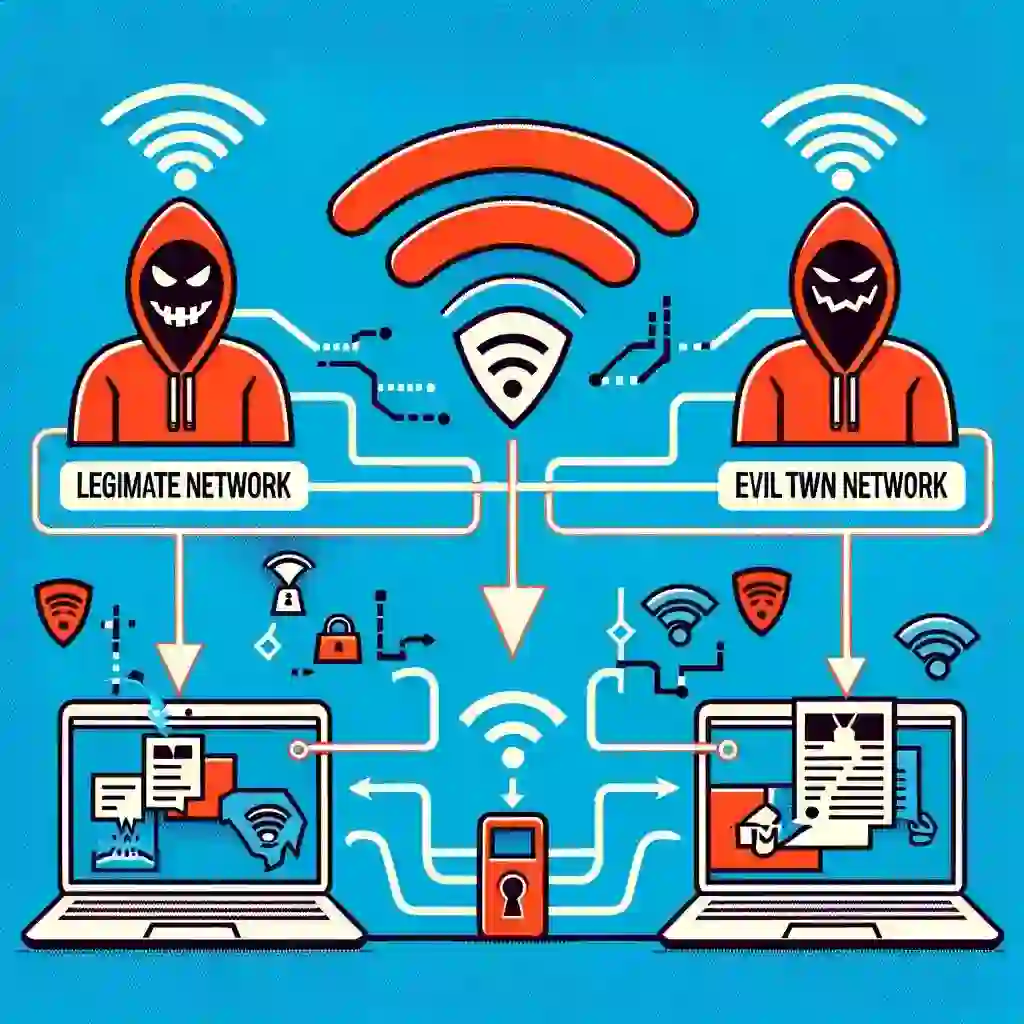
Free Wi-Fi at airports, hotels, coffee shops, and shopping centers is convenient. You can check email, browse websites, or finish some work without using mobile data. However, not every wireless network that looks familiar is legitimate.
Attackers can create fake Wi-Fi hotspots that imitate the names of real networks. If you connect to one, they may try to redirect your browser to phishing pages, collect information you submit, or monitor traffic that is not properly encrypted.
This technique is known as an Evil Twin attack. It takes advantage of a simple habit: people often choose a familiar-looking Wi-Fi name without checking whether it belongs to the business.
Understanding how these attacks work can help you make safer decisions whenever you use public wireless networks.
1. What Is an Evil Twin Wi-Fi Attack?
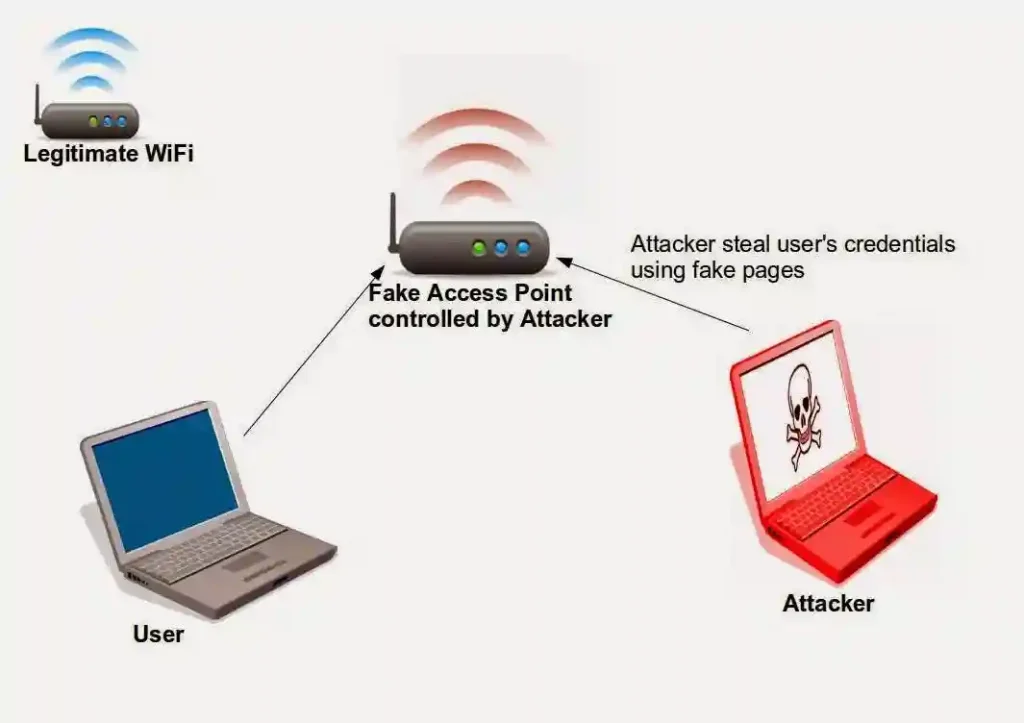
An Evil Twin attack occurs when someone creates a fraudulent wireless access point that imitates a legitimate Wi-Fi network.
For example, imagine an airport offering free internet through a network named Airport_Free_WiFi.
An attacker nearby creates another hotspot using the same or a very similar network name. A traveler searching for free internet may see both networks and connect to the wrong one.
The fake access point may display a login page that looks similar to the airport’s official Wi-Fi portal. A user might enter an email address, password, or other information without realizing that the page is controlled by an attacker.
The important detail is that a Wi-Fi network name, also known as an SSID, does not prove who operates the network. Anyone with suitable equipment can broadcast a network using a familiar name.
2. How Do Attackers Create Fake Wi-Fi Networks?
An attacker typically uses a wireless access point or a device configured to broadcast a fraudulent network.
The process may involve several steps:
- Copying the network name: The attacker identifies a nearby public Wi-Fi network and creates another hotspot with the same or a similar SSID.
- Creating a fake login page: The hotspot may display a captive portal that imitates the legitimate network’s sign-in page.
- Attracting nearby devices: Users may select the fake network because its name looks familiar or its signal appears stronger.
- Attempting to interfere with connections: Some attacks use Wi-Fi deauthentication frames to disconnect nearby devices from a legitimate access point, encouraging them to reconnect elsewhere.
This last technique is often called a deauthentication attack. Its effectiveness depends on the wireless security configuration and whether protections such as Protected Management Frames (PMF) are enabled.
Not every Evil Twin attack uses deauthentication. Simply creating a convincing duplicate network can be enough to trick an unsuspecting visitor.
3. What Happens After You Connect?
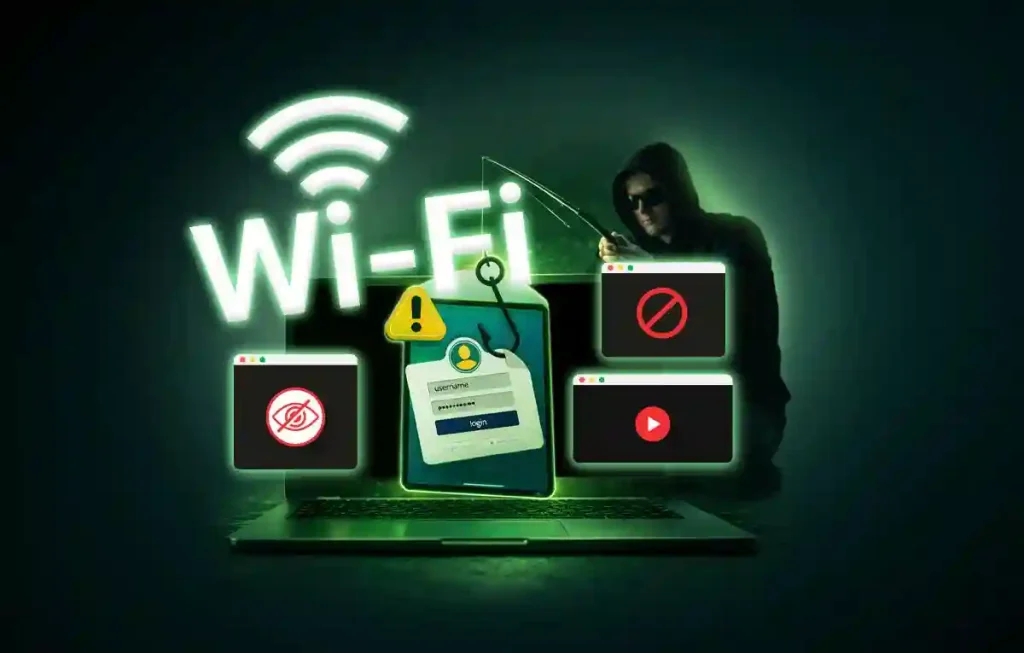
The consequences depend on how the fraudulent hotspot is configured and what security protections your device and applications use.
An attacker may attempt to:
- Redirect you to phishing websites.
- Display a fake Wi-Fi login page.
- Collect information you submit through an untrusted page.
- Observe unencrypted network traffic.
- Manipulate DNS responses to direct you toward fraudulent destinations.
- Collect basic information about connected devices and their network activity.
However, connecting to a malicious hotspot does not automatically expose everything you do online.
HTTPS encryption still provides important protection. When you visit a properly configured HTTPS website, the connection encrypts information exchanged between your browser and the website. A nearby attacker generally cannot simply read your passwords or the contents of that encrypted session.
There are exceptions and additional risks, including certificate warnings, malicious applications, phishing pages, and incorrectly configured websites. This is why you should never ignore browser security warnings or assume that a familiar website name guarantees safety.
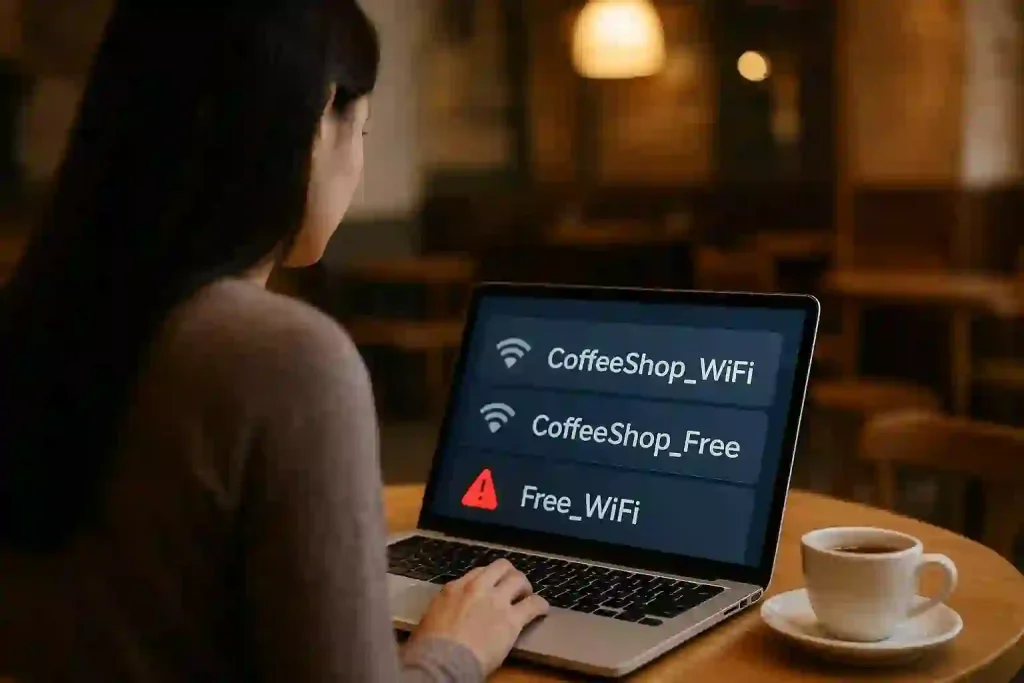
4. A Practical Example: A Fake Coffee Shop Wi-Fi Network
Imagine that you are working in a coffee shop and open your laptop’s Wi-Fi settings.
You see two available networks:
CoffeeShop_Free_WiFi
CoffeeShop_Free_WiFi_2
You choose the first network because its name looks official.
A login page opens and asks for your email address and password before granting internet access. The page uses the coffee shop’s logo and familiar colors, so you enter your details.
Unfortunately, the page is controlled by an attacker rather than the business.
If you entered your regular email password, the attacker may now have access to credentials that could be used against other accounts, especially if you reused that password.
The warning is simple: a convincing Wi-Fi name and login page are not proof of legitimacy.
5. How to Protect Yourself on Public Wi-Fi
You do not need to avoid every public Wi-Fi network. Instead, follow a few practical security habits.
Step 1: Verify the Official Network Name
Ask an employee for the exact Wi-Fi name before connecting.
Do not rely only on the network name, logo, or signal strength. If you see multiple similar networks, confirm which one is operated by the business.
Step 2: Disable Automatic Wi-Fi Connections
Your device may automatically reconnect to previously saved networks. This can create unnecessary risks when you travel or visit unfamiliar locations.
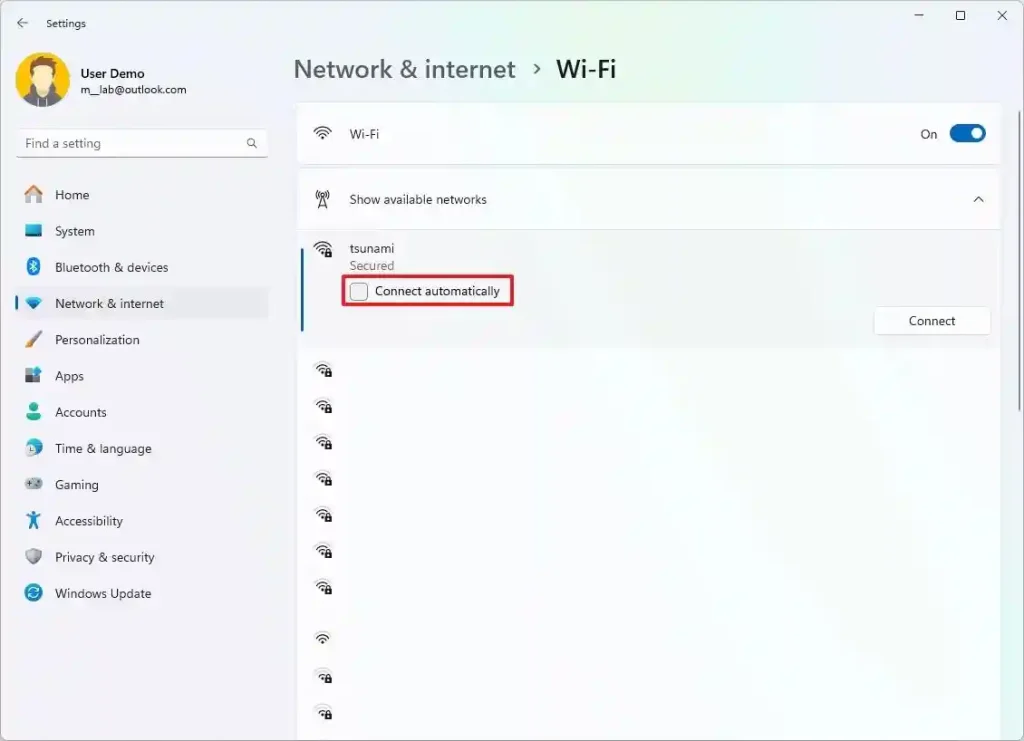
On Windows 11:
- Open Settings > Network & internet > Wi-Fi.
- Select Manage known networks.
- Find networks you no longer use.
- Open the network’s properties and disable automatic connection if that option is available, or select Forget to remove the saved network.
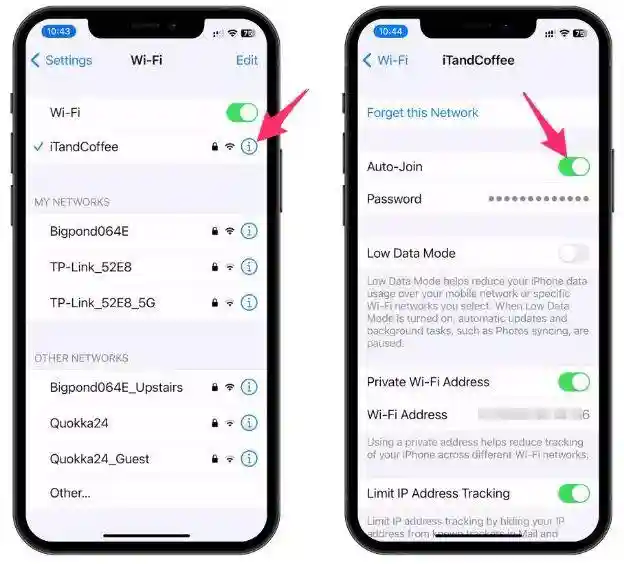
On an iPhone:
- Open Settings > Wi-Fi.
- Tap the information button next to a saved network.
- Turn off Auto-Join for networks you do not want to join automatically.
Menu wording may vary slightly depending on your operating system version.
Step 3: Avoid Entering Sensitive Information into Unfamiliar Portals
Be cautious if a public Wi-Fi login page asks for your email password, banking credentials, or other sensitive information.
A legitimate captive portal may request basic access details, but you should question any page that asks for credentials unrelated to the internet service.
Never reuse your primary account password on an unfamiliar Wi-Fi login page.
Step 4: Check for HTTPS
Before entering information on a website, check that its address begins with https:// and that your browser does not display a certificate warning.
HTTPS protects the connection between your browser and the website, but it does not prove that the website itself is legitimate. A phishing website can also use HTTPS.
Always check the domain name carefully.
Step 5: Use a Trusted VPN When Appropriate
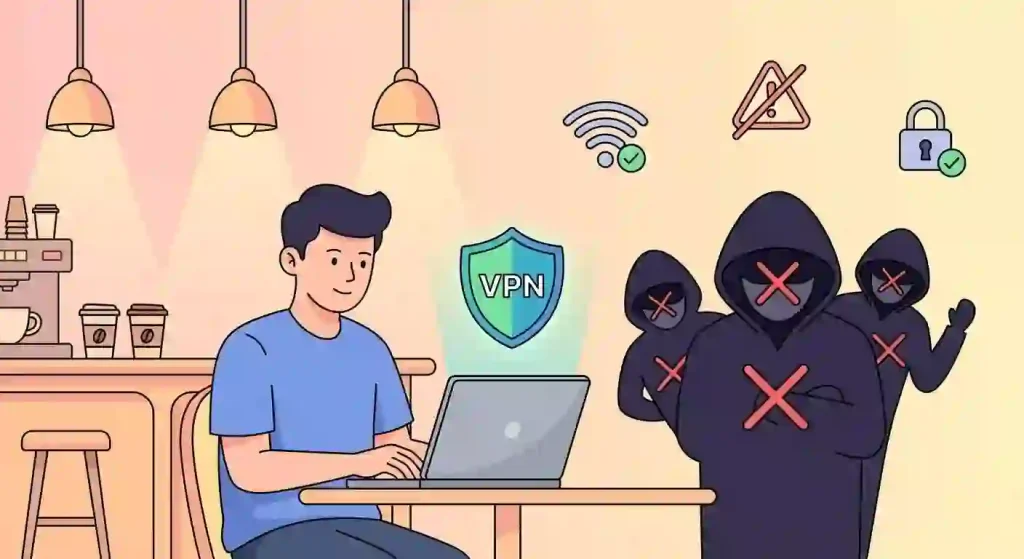
A reputable VPN can encrypt traffic between your device and the VPN server, adding protection against local network monitoring.
Choose a provider you trust and keep the VPN application updated. A VPN does not make phishing websites safe, prevent every malware infection, or guarantee complete anonymity.
For sensitive work, a trusted mobile data connection may be a better choice than an unfamiliar public hotspot.
Step 6: Keep Your Devices Updated
Install operating system, browser, and security updates regularly. Updates often include fixes for vulnerabilities that attackers could otherwise exploit.
On Windows 11, visit Settings > Windows Update > Check for updates.
When you finish using a public hotspot, disconnect from it. You can also turn off Wi-Fi when you do not need wireless connectivity.
6. What Should You Do If You Connected to a Suspicious Network?
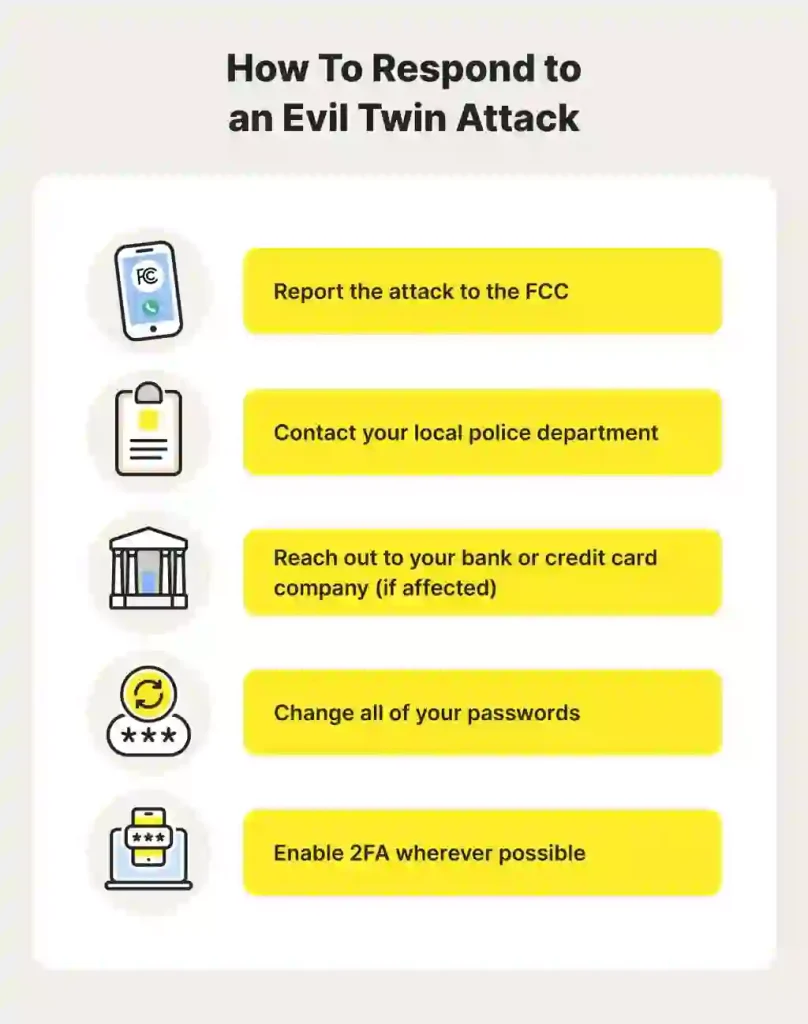
If you suspect that you joined a fake hotspot, do not panic. Take the following steps.
- Disconnect immediately: Turn off Wi-Fi or switch to a trusted mobile data connection.
- Forget the network: Remove the suspicious hotspot from your saved Wi-Fi networks.
- Disable automatic joining: Make sure your device will not reconnect to it later.
- Change exposed passwords: If you entered credentials on a suspicious page, change those passwords using a trusted connection and the official website or application.
- Enable multi-factor authentication: Add an extra verification method to important accounts, especially email and financial services.
- Review account activity: Check recent sign-ins, security alerts, and unfamiliar account changes.
- Report the network: Inform the business or its network administrator so they can investigate the fraudulent hotspot.
If you downloaded an unknown application, installed a certificate, or approved an unexpected configuration profile, investigate those changes separately. Simply disconnecting from Wi-Fi may not undo them.
7. Common Mistakes and Troubleshooting
Assuming the Strongest Wi-Fi Signal Is the Safest
A fake access point may have a stronger signal than the legitimate network.
Solution: Verify the network name with the business instead of choosing based on signal strength.
Believing HTTPS Makes Every Website Safe
HTTPS encrypts the connection, but it cannot tell you whether a website is operated by a trustworthy organization.
Solution: Check the domain name and avoid entering information on unfamiliar login pages.
Assuming a VPN Protects Against Every Attack
A VPN helps protect network traffic, but it cannot prevent you from submitting your password to a phishing website.
Solution: Combine VPN protection with careful browsing, strong passwords, and multi-factor authentication.
Reconnecting to a Network Without Checking It
A saved network may reconnect automatically when you return to a location.
Solution: Review saved Wi-Fi networks and disable Auto-Join for hotspots you do not fully trust.
Final Thoughts
Public Wi-Fi is not automatically dangerous, but you should never assume that every familiar-looking network is legitimate.
Evil Twin attacks exploit trust rather than relying entirely on sophisticated technical vulnerabilities. An attacker may only need to create a convincing hotspot and persuade someone to connect.
Verify network names, disable unnecessary automatic connections, use HTTPS, and consider a trusted VPN when appropriate.
Remember: the strongest Wi-Fi signal is not necessarily the safest one.
You just gained a new follower. Keep writing!