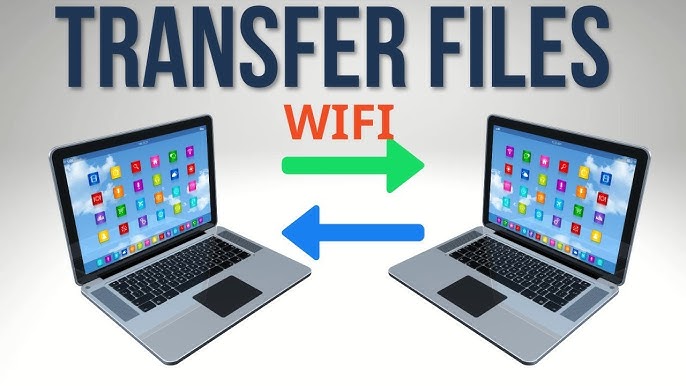
Transferring files between devices is something we all do, whether for work, study, or personal use. However, not all file transfer methods are fast, reliable, or easy to use.
If you are still using outdated methods like USB drives or slow email attachments, you are missing out on much better options.
In this guide, we will explore the best free file transfer tools for Windows. These tools are simple, efficient, and suitable for both beginners and advanced users.
Why You Need a File Transfer Tool
Before jumping into the list, let’s quickly understand why dedicated file transfer tools are useful.
- Faster speeds compared to traditional methods
- Ability to transfer large files
- No need for cables or USB drives
- More secure and reliable
- Cross-platform support (Windows, Mac, mobile)
Depending on your needs, you may want a tool for local transfer, remote transfer, or cloud sharing.
1. Nearby Sharing (Built-in Windows Feature)
If you are using Windows 10 or Windows 11, you already have a built-in option.
Nearby Sharing allows you to send files between nearby Windows devices using Bluetooth or WiFi.
Key Features:
- No installation required
- Easy to use
- Works over local network
How to Use:
- Go to Settings → System → Shared Experiences
- Enable Nearby Sharing
- Choose who can share with you
This is a good option for quick transfers between two Windows PCs.
2. SHAREit
SHAREit is one of the most popular file transfer tools.
It allows fast transfer between devices without using mobile data.
Key Features:
- High-speed transfer
- Supports multiple devices
- Works on Windows, Android, and iOS
Pros:
- Very fast for large files
- Simple interface
Cons:
- Contains ads in some versions
3. Send Anywhere
Send Anywhere is a simple and secure file transfer tool.
It uses a 6-digit key system for transferring files.
Key Features:
- No login required
- Secure transfers
- Cross-platform support
How It Works:
You send a file and receive a unique code. The receiver enters the code to download the file.
4. Snapdrop
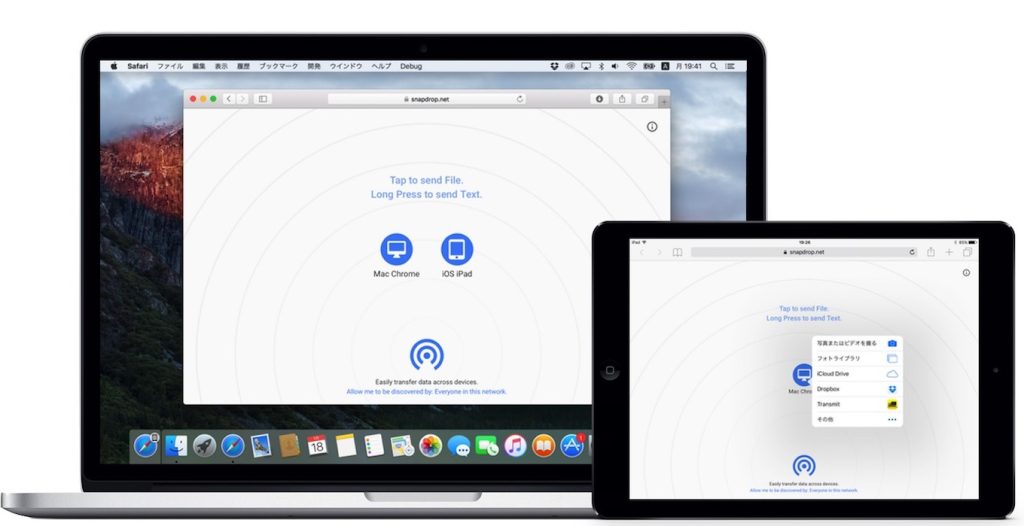
Snapdrop is a web-based file transfer tool.
It works directly in your browser without installation.
Key Features:
- No setup required
- Works on same network
- Open source
How to Use:
- Open snapdrop.net on both devices
- Click the device name
- Send files instantly
It is one of the easiest tools available.
5. Feem
Feem is designed for local file transfers without internet.
Key Features:
- Works offline
- High speed on local network
- Secure transfers
Feem is ideal if you want privacy and speed within the same network.
6. AirDroid
AirDroid is more than just a file transfer tool.
It allows remote access and device management.
Key Features:
- Wireless file transfer
- Remote control
- Notification syncing
Best For:
Users who want full control over their Android device from Windows.
7. Google Drive

Cloud storage is another powerful option.
Google Drive allows you to upload files and share links.
Key Features:
- Accessible anywhere
- Easy sharing via links
- Free storage available
Limitation:
Upload speed depends on your internet connection.
8. Dropbox

Dropbox is another well-known cloud storage service.
Key Features:
- Reliable syncing
- Easy collaboration
- Cross-platform support
It is commonly used in professional environments.
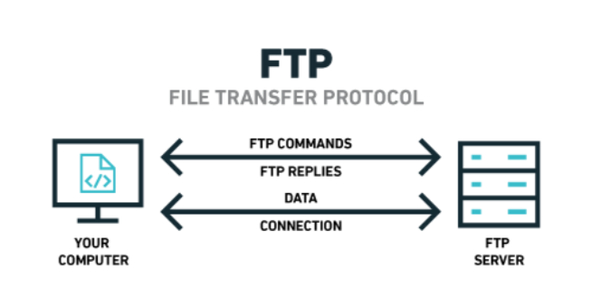
9. FTP (File Transfer Protocol)
FTP is a more advanced method.
It allows file transfer between computers over a network.
Key Features:
- Very powerful
- Suitable for large transfers
- Used by developers and server admins
Tools:
You can use FTP clients like FileZilla.
10. USB Transfer (Still Useful)
Even though we are focusing on tools, USB drives are still relevant.
When to Use:
- No internet available
- Large files
- Secure offline transfer
How to Choose the Right Tool
Choosing the right file transfer tool depends on your situation.
For quick local transfers:
Use Nearby Sharing or Snapdrop
For cross-device transfers:
Use SHAREit or Send Anywhere
For cloud sharing:
Use Google Drive or Dropbox
For advanced users:
Use FTP
Tips for Faster File Transfers
- Use WiFi instead of Bluetooth
- Keep devices close together
- Avoid network congestion
- Use wired connection if possible
Security Considerations
Always be careful when transferring files.
- Avoid unknown apps
- Use secure connections
- Do not share sensitive files publicly
- Use encryption when possible
Conclusion
There are many free file transfer tools available for Windows, and each has its own advantages.
For most users, simple tools like Snapdrop or Send Anywhere are more than enough. For advanced needs, FTP or cloud storage solutions provide more flexibility.
Try a few options and choose the one that best fits your workflow.
At LToss Tech Guide, we focus on simple and practical solutions to everyday tech problems. Stay tuned for more useful guides.