
If you manage a website long enough, you will eventually see a strange pattern: a site has hundreds of published pages, but organic traffic remains surprisingly low.
The response is often to publish even more.
Four new articles this month. Another four next month. Then another batch after that.
More content feels productive, but it does not automatically solve a visibility problem. In many cases, the site already has useful content that is sitting on the second page of Google, receiving impressions but very few clicks.
That is where I would change the strategy.
Instead of spending the next 60 days publishing new articles, use the existing content as your SEO project. Google Search Console can show you which queries are already generating impressions and which pages are close to getting significantly more visibility.
The goal is not to rewrite everything. It is to find the pages with real search potential, improve them where necessary, and then measure what happens.
Why Existing Content Can Be Your Best SEO Opportunity
A published page that already appears in Google has something a completely new article does not: search data.
You may already have pages ranking for dozens or even hundreds of queries that you never specifically targeted.
Some of those queries may rank around positions 8, 12, 15, or 18. The page is already visible, but it is not getting enough clicks.
That creates an interesting optimization opportunity.
For example, imagine you have an article about Windows backup. Search Console shows that the page receives impressions for:
| Search Query | Average Position | Impressions |
|---|---|---|
| Windows 11 backup | 8.2 | 4,800 |
| backup Windows 11 | 11.4 | 2,900 |
| Windows system image backup | 14.7 | 1,800 |
| how to backup Windows 11 | 18.1 | 1,200 |
You could write four new articles targeting these phrases.
But before doing that, check whether the existing article could be improved to answer these searches more completely.
You may already have the foundation. The missing piece could be better coverage, clearer headings, stronger internal links, a better title, or a more useful explanation.
That is why existing content deserves attention before you automatically add another URL to your site.
Step 1: Open Google Search Console
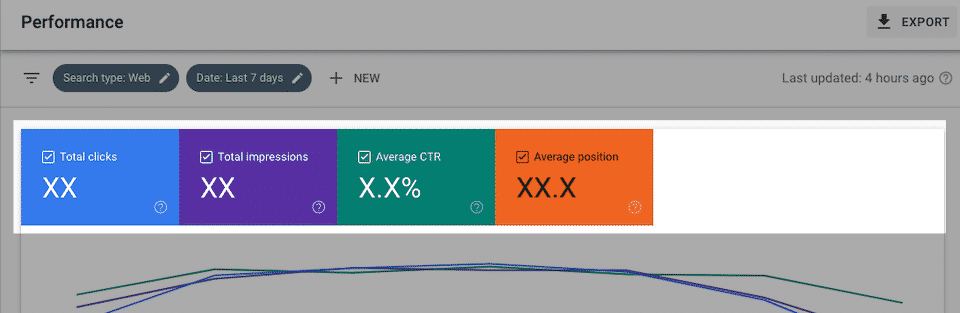
Start with your website’s Google Search Console property.
Go to:
Search Console > Performance > Search results
Set the date range to:
Last 28 days
You will normally see four important metrics:
- Total clicks
- Total impressions
- Average CTR
- Average position
For this strategy, impressions and average position are particularly useful.
Impressions tell you that Google is showing your pages in search results. Average position gives you an indication of where your pages are appearing.
Do not look only at total clicks.
A page receiving 20 clicks might appear unimportant at first glance. But if it has 5,000 impressions and ranks around position 12, it may have much more room for improvement than a page receiving 20 clicks with only 100 impressions.
The next step is to find those opportunities.
Step 2: Export Your Search Queries
In:
Search Console > Performance > Search results
select the Queries tab.
You will see the search terms that generated impressions and clicks for your website during the selected period.
Export the data to a spreadsheet.
You do not need to analyze every keyword manually. Start with the columns that matter:
- Query
- Clicks
- Impressions
- CTR
- Position
Then sort or filter the Position column.
This is where the process becomes much more useful.
Instead of asking:
What should I write next?
you are asking:
Which searches is Google already associating with my existing content?
That is a much more data-driven starting point.
Step 3: Find Keywords Ranking in Positions 4–20
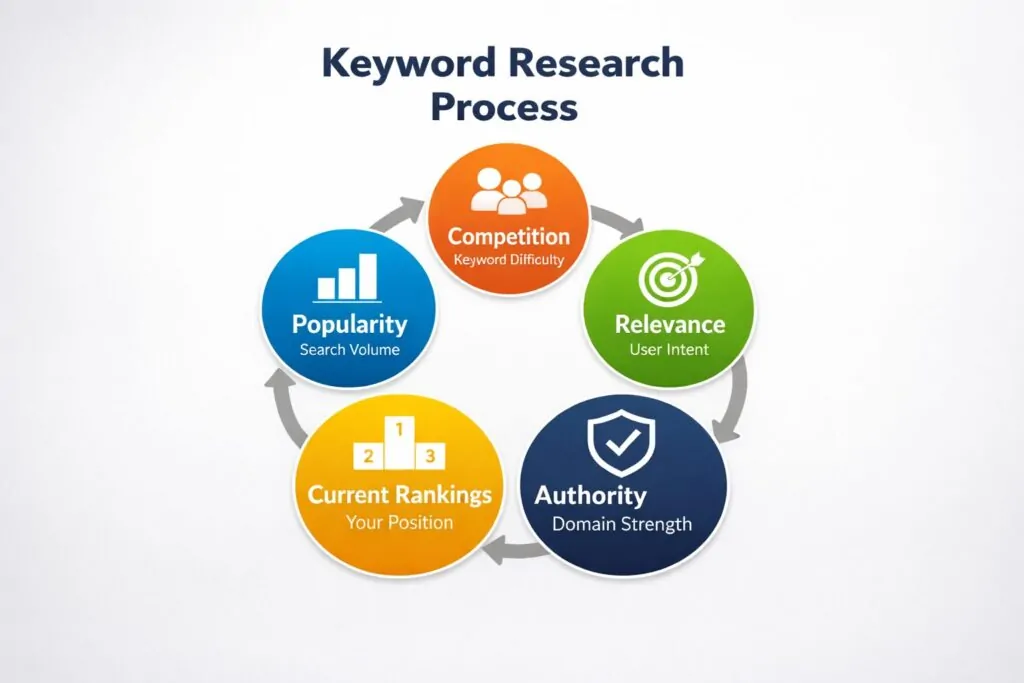
A practical filter is to look for queries where your average position is between 4 and 20.
This is not a magic SEO range, and ranking position alone does not guarantee that a page can move higher.
It is simply a useful research filter.
Consider a simplified example:
| Query | Position | Impressions | Clicks |
|---|---|---|---|
| Windows 11 backup | 7.8 | 5,200 | 180 |
| Windows backup software | 13.2 | 3,400 | 70 |
| create Windows system image | 16.5 | 2,100 | 31 |
| Windows 11 backup guide | 19.1 | 1,600 | 14 |
The first thing I would investigate is not whether I can write another article.
I would open the existing page associated with each query.
Then ask:
- Does the page actually answer this query well?
- Is the relevant information easy to find?
- Is there a missing section?
- Could an existing section be expanded?
- Does the page title accurately describe the content?
- Are there relevant internal links?
- Does the introduction immediately explain the problem?
- Is the page outdated?
- Does the article cover the related questions a reader would naturally have?
The goal is to identify content gaps, not simply repeat the keyword.
Step 4: Connect Each Query to the Correct Page
Search Console can show you the queries and pages associated with your search performance.
Use the Pages tab to identify which URL is receiving impressions for a particular topic.
For example:
| Search Query | Existing Page | Position |
|---|---|---|
| Windows 11 backup | /windows-11-backup/ | 8 |
| system image Windows 11 | /windows-11-backup/ | 15 |
| restore Windows image | /windows-11-backup/ | 19 |
This is valuable because three different queries may already be contributing traffic to the same article.
That page may be a better optimization target than creating three separate articles.
However, do not force unrelated keywords into one page.
If two searches have completely different search intent, they may deserve separate pages.
For example, an article explaining how to create a Windows backup and an article reviewing third-party backup software may serve different users.
Search intent should come before keyword volume.
Step 5: Improve the Existing Content
Once you have identified a page worth improving, read it as if you were a first-time visitor.
Do not start by adding keywords.
Start by asking:
What information is missing?
There are several practical ways to improve an existing article.
Add a New Section
Suppose your article explains how to create a Windows backup but does not explain how to restore it.
If Search Console shows queries related to restoring backups, adding a dedicated restoration section could make the article more useful.
For example:
## How to Restore a Windows 11 Backup

### When You Need to Restore a Backup

### How to Access Windows Recovery Options

### How to Restore a System Image
The new section should answer a real question related to the article.
Do not create sections simply because you want to insert another keyword.
Expand an Existing Section
Sometimes you do not need a new section.
An existing section may simply be too short.
For example, you might currently have:
Open Settings and select Storage.
That may be technically correct, but a beginner could still have questions.
You could explain:
- Where to find the setting
- What the option does
- What happens after selecting it
- What users should expect next
- What to do if the option is missing
The objective is to make the page more useful without adding unnecessary text.
Improve the Title
The page title is another area worth reviewing.
Suppose your original title is:
Windows 11 Backup
That is very broad.
If the article actually teaches users how to create a complete system backup, a more descriptive title could be:
How to Create a Full Windows 11 System Backup Without Third-Party Software
The new title communicates the actual purpose of the page more clearly.
Do not change titles simply to insert more keywords. Make the title more accurate and useful for the searcher.
Step 6: Look for Featured Snippet Opportunities
Some existing articles contain information that could potentially answer a question directly in Google’s search results.
Look for queries that are phrased as questions, such as:
- How do I back up Windows 11?
- What is a system image?
- How do I restore a Windows backup?
- Can I back up Windows without third-party software?
Then check whether your article provides a clear answer.
A useful structure is:
## How Do You Create a Windows 11 System Image?

You can create a system image using Windows' built-in backup and recovery tools.
The image contains a copy of the system and can be used to restore Windows later.
Follow that with the detailed instructions.
For processes, numbered lists can also make the answer easier to understand:
1. Open Control Panel.
2. Select Backup and Restore.
3. Choose Create a system image.
4. Select the backup destination.
5. Follow the on-screen instructions.
This does not guarantee a featured snippet.
The point is to make the answer clear, structured, and easy for both users and search engines to understand.
Step 7: Strengthen Internal Links
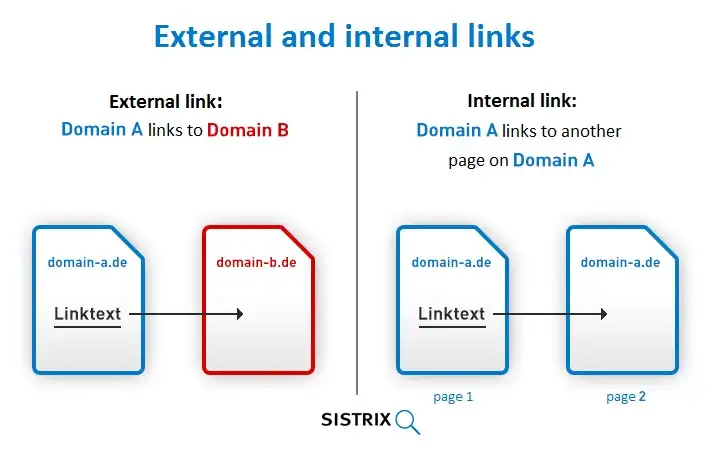
When you update an existing article, check its internal links at the same time.
Imagine your website has these pages:
Windows 11 Backup
        ↓
Windows 11 Recovery
        ↓
Windows 11 Safe Mode
        ↓
Windows 11 Troubleshooting
If these articles are genuinely related, link them naturally.
For example, when explaining what happens after a failed Windows update, you might link to your detailed backup guide.
Good internal links help readers discover related information and help search engines understand the relationships between pages on your site.
Do not add dozens of links just because you can.
Each link should have a reason to exist.
The anchor text should also describe the destination naturally.
Instead of:
Click here to read more.
Use something more specific, such as:
learn how to create a Windows 11 system backup
when that accurately describes the linked page.
Step 8: Update the Page, Then Measure It
After making the changes, do not immediately rewrite the page again.
Give the updated content time to collect new search data.
Keep a simple optimization log.
For example:
| URL | Target Query | Original Position | Changes | Update Date |
|---|---|---|---|---|
| /windows-11-backup/ | Windows 11 backup | 8.2 | Added restore section | May 5 |
| /python-error-guide/ | Python module error | 14.6 | Expanded troubleshooting | May 8 |
| /heic-metadata/ | HEIC metadata | 17.3 | Added FAQ section | May 12 |
After several weeks, return to:
Search Console > Performance > Search results
Compare the updated pages with their previous performance.
Look at:
- Clicks
- Impressions
- CTR
- Average position
- Queries
- Pages
Do not judge an update based on one or two days of data.
Search performance changes for many reasons, and individual rankings can move up and down.
The purpose of the 60-day process is to identify patterns rather than react to every small ranking change.
A Practical 60-Day SEO Plan
If your website already has a large content library, you can turn this into a structured two-month project.
Days 1–7: Find the Opportunities
Start with Search Console.
Export the last 28 days of search data and identify queries ranking between positions 4 and 20.
Then connect those queries to their existing URLs.
You do not need to select every page.
Start with the pages that have:
- Relevant search queries
- Meaningful impressions
- Reasonable ranking positions
- Clear content gaps
- A topic that matches your site’s main focus
Create a spreadsheet to track them.
Days 8–30: Improve the Pages
Begin updating the selected articles.
For each page:
- Read the current article completely.
- Review the queries generating impressions.
- Identify missing information.
- Add or expand relevant sections.
- Improve unclear headings.
- Review the title.
- Add useful internal links.
- Update outdated information.
- Remove unnecessary repetition.
- Check the page on mobile.
Do not completely rewrite every article unless there is a good reason.
In many cases, targeted improvements are enough.
Days 31–45: Review the Data
Return to Search Console and compare the updated pages.
Look for changes in:
- Average position
- Impressions
- Clicks
- CTR
- New queries
Some pages may improve.
Some may barely change.
Some may even decline.
That is normal.
The useful information is discovering which types of changes appear to work better for your particular website.
Days 46–60: Double Down on What Works
By this point, you should have more information about your existing content.
If pages with expanded troubleshooting sections performed better, look for other relevant articles that have the same weakness.
If improving titles helped certain pages, review other pages with high impressions but low CTR.
If internal linking improvements were useful, examine related topic clusters across the site.
The second half of the process should be based on what your own data shows rather than a generic SEO checklist.
What About Publishing New Articles?
This does not mean you should never publish new content again.
There are situations where a new article is exactly what your website needs.
For example, publish a new page when:
- You have a genuine topic gap.
- An important query requires a separate search intent.
- Your existing article cannot reasonably cover the topic.
- You are building a new content cluster.
- You have first-hand information that does not exist elsewhere on your site.
The mistake is treating new content as the automatic solution to every traffic problem.
Before creating another URL, ask:
Do I really need a new page, or can an existing page answer this search better?
That one question can change how you manage a large website.
Common Mistakes or Troubleshooting
Updating Every Page at Once
You do not need to update hundreds of articles simultaneously.
Start with a small group of pages where Search Console shows a clear opportunity.
Changing Everything at the Same Time
If you completely rewrite the title, content, structure, links, and metadata at once, it becomes difficult to understand what actually changed.
Make meaningful improvements, but keep track of what you changed.
Keyword Stuffing
Finding a keyword in Search Console does not mean you should repeat it throughout the article.
Use the query to understand what users want.
Then improve the page so it satisfies that intent naturally.
Focusing Only on Search Volume
A keyword with a large search volume is not automatically the best target.
A smaller query that closely matches your existing article can be more useful than a broad keyword with heavy competition.
Deleting Content Too Quickly
A page with low traffic is not automatically useless.
Check its impressions, queries, backlinks, internal links, and search intent before deciding what to do with it.
Some pages simply need better content.
Expecting Guaranteed Ranking Improvements
Content updates can improve a page, but there is no guaranteed ranking increase from changing a title, adding a section, or inserting keywords.
Search results depend on many factors.
Use the 60-day process to gather evidence and improve your strategy, not to expect every page to move to the first position.
The SEO Opportunity May Already Be on Your Website
If your website has hundreds of articles but very little organic traffic, publishing another batch of articles may not be the first thing you should do.
Look at what Google is already showing.
Open Search Console.
Export your queries.
Find pages ranking around positions 4–20.
Connect those queries to the pages receiving impressions.
Then improve the pages based on what users are actually searching for.
You may discover that your biggest SEO opportunity is not the next 50 articles you could publish.
It may be the 50 articles you already have.