Have you ever opened a PDF file and tried to change a sentence, only to discover that you cannot edit the text directly? This happens because PDF files are designed to preserve document layouts across different devices, not to work like regular Word documents.
A common situation occurs when someone receives a PDF report, application form, or business document and needs to update its contents. Copying and pasting everything into Word can take a long time, especially when the file contains tables, images, and multiple pages.
The good news is that you do not need to install desktop software to convert a PDF into an editable Word document. You can use free browser-based tools such as Microsoft Word for the web, Google Docs, or an online PDF converter.
This guide explains three practical methods, how to choose the right one, and what to check after conversion.
1. Check Your PDF Before Converting It
Before choosing a conversion method, determine what type of PDF you have. This affects the quality of the final Word document.
There are two common types:
- Text-based PDF: The document contains selectable text. You can usually highlight a sentence or copy it into another application.
- Scanned PDF: Each page is essentially an image, often created by scanning a paper document. You cannot select individual words without optical character recognition (OCR).
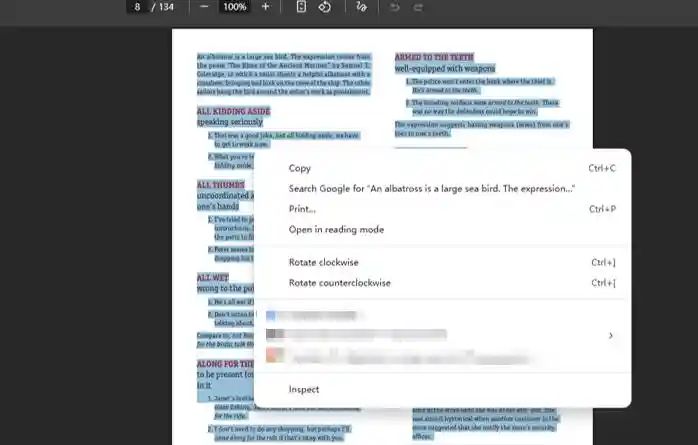
Step 1: Test whether the text is selectable
- Open the PDF in Chrome, Edge, or another PDF viewer.
- Try dragging your mouse across a sentence.
- Copy the selected text using Ctrl + C.
- Paste it into Notepad or another text editor.
If the words appear correctly, your PDF probably contains selectable text.
If you can only select the entire page as an image, you will need a conversion method with OCR support.
2. Convert PDF to Word Using Microsoft Word Online
Microsoft Word for the web is a convenient option if you already have a Microsoft account. It can open certain PDF files and convert them into editable Word documents without requiring you to install the desktop application.
Step 1: Open Word Online
- Open your browser.
- Visit Microsoft Word Online.
- Sign in with your Microsoft account.
- Select Word from the available applications.
Step 2: Upload your PDF
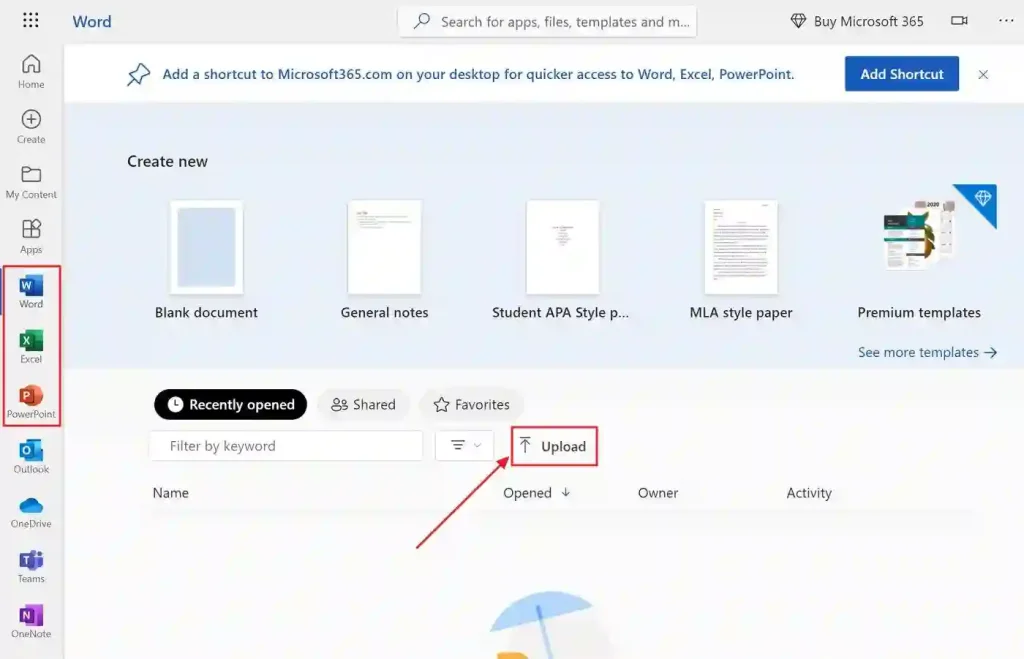
Look for the option to upload or open a document from your device.
- Select Upload or Open.
- Choose the PDF file from your computer.
- Wait for Word to process the document.
Depending on the file, Word may display a message explaining that it will convert the PDF into an editable Word document.
Step 3: Review the converted document
Once the conversion finishes, check the content carefully.
Pay attention to:
- Headings and paragraph spacing.
- Tables and columns.
- Images and page breaks.
- Special characters and symbols.
PDF conversion can change the original layout, especially if the document contains complex formatting.
Step 4: Save the editable Word file
If the document opens successfully, select File > Save As or Download a Copy, depending on the available interface options.
Choose the Word document format (.docx).
You can now edit the downloaded file using a compatible word processor.
Important: Microsoft may limit certain features or file operations depending on your account and the document. Availability and conversion results can also vary.
3. Convert PDF to Word Using Google Docs
Google Docs is another useful browser-based method. It is particularly convenient for simple documents and PDFs that contain selectable text.
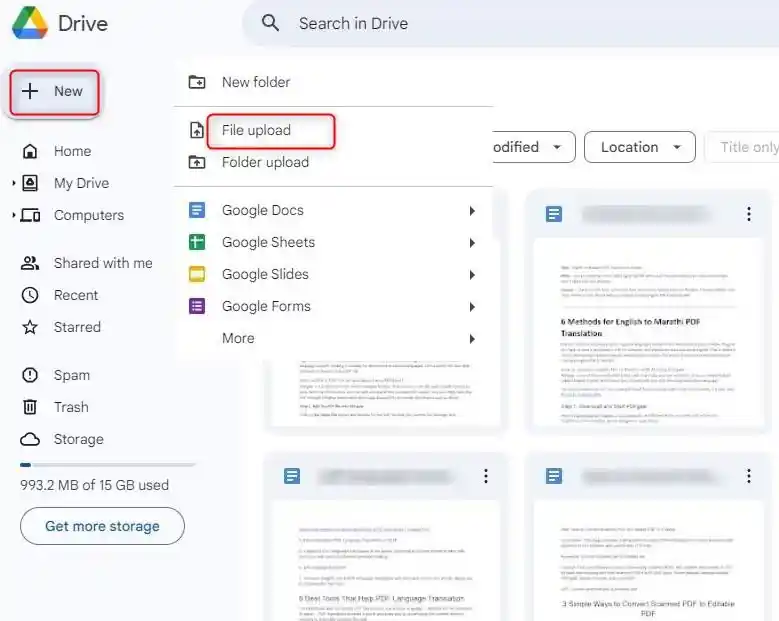
Step 1: Open Google Drive
Visit Google Drive and sign in with your Google account.
Click New > File upload, then select your PDF file.
Wait until the upload finishes.
Step 2: Open the PDF with Google Docs
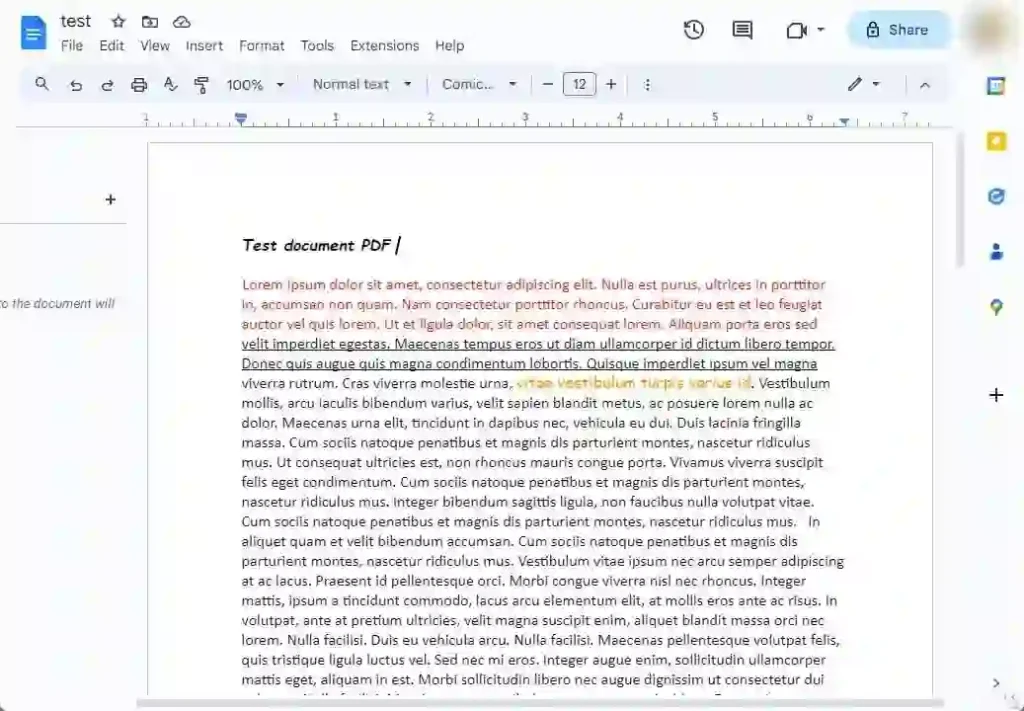
- Find the uploaded PDF in Google Drive.
- Right-click the file.
- Select Open with > Google Docs.
- Wait for Google Docs to process the document.
Google Docs will attempt to recognize the document content and display it in an editable format.
If the PDF contains scanned pages, Google may use OCR to recognize the text. Results depend on image quality, language, and document layout.
Step 3: Export the document as Word
After checking the converted content:
- Select File.
- Choose Download.
- Select Microsoft Word (.docx).
- Save the file to your computer.
Your PDF content is now available as an editable Word document.
When to use this method: Google Docs works well for text-heavy PDFs, simple reports, and documents that do not rely on complicated page layouts.
4. Use a Free Online PDF Converter
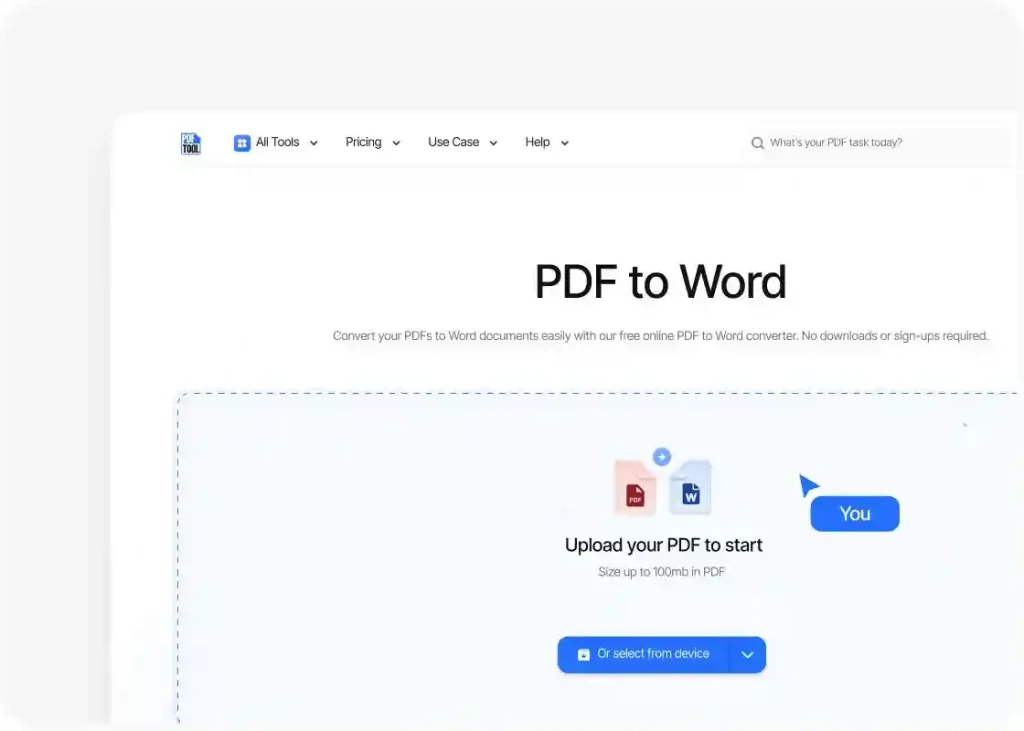
If you prefer a dedicated conversion website, online PDF tools provide another option.
Popular services include:
These services generally provide a PDF-to-Word conversion workflow directly in your browser.
Step 1: Choose a conversion service
Open one of the websites above and find its PDF to Word feature.
Check whether the free version supports the file size and conversion you need. Some services limit daily use, file size, or OCR features.
Step 2: Upload your PDF
Click the file selection button and choose your PDF.
Some services also support importing files from cloud storage.
Before uploading, consider whether the document contains confidential information. Online converters require you to send the file to an external service, so check its privacy policy and file-retention practices.
Step 3: Convert and download
Select the conversion option and wait for processing to finish.
Download the resulting DOCX file and open it in Microsoft Word, Google Docs, or another compatible editor.
Review the document before using or sharing it.
5. How to Convert Scanned PDF Files into Editable Word Documents
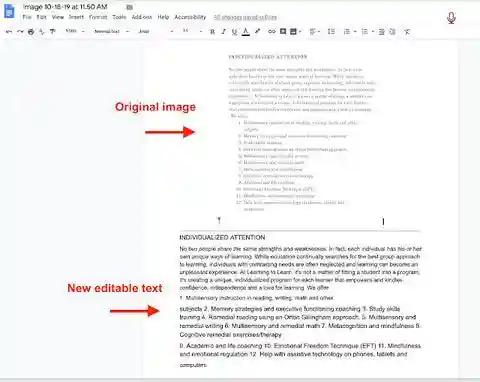
Scanned PDFs require an additional step because their pages contain images rather than ordinary text.
This is where OCR becomes important.
OCR stands for Optical Character Recognition. It analyzes an image and attempts to identify the letters and words printed on the page.
Step 1: Choose a tool with OCR support
Google Docs can recognize text in some uploaded PDF files. Dedicated online converters may also offer OCR as a separate feature.
Check whether OCR is included in the free version before uploading your document.
Step 2: Upload a clear scanned PDF
For better recognition results:
- Use a high-resolution scan.
- Make sure pages are straight.
- Avoid blurry or shadowed images.
- Use good contrast between text and background.
Step 3: Check the recognized text
OCR is not perfect. It may confuse similar characters, miss punctuation, or incorrectly recognize handwritten text.
For example, the letter “O” may be mistaken for the number “0”.
Compare important names, dates, amounts, and technical terms against the original PDF.
6. Which PDF-to-Word Method Should You Choose?
The best method depends on your document and what you want to do with it.
| Method | Best For | Main Consideration |
|---|---|---|
| Microsoft Word Online | General PDF documents | Layout may change |
| Google Docs | Text-based PDFs and simple documents | Complex formatting may be lost |
| Online converters | Quick conversions | Free limits and privacy policies |
| OCR-enabled tools | Scanned PDF documents | Recognition errors need checking |
For ordinary text-based PDFs, start with Word Online or Google Docs. For scanned documents, choose a method that explicitly supports OCR.
7. Common Mistakes and Troubleshooting
The converted Word document looks different: PDF and Word use different layout systems. Check page breaks, tables, margins, and fonts after conversion.
The text cannot be edited: Your PDF may contain scanned images. Use a conversion tool with OCR support.
Some characters are missing: This can happen with unusual fonts, poor scans, or unsupported symbols. Compare the converted text with the original.
The online converter asks for payment: Some services offer free conversions with usage limits. Try another supported method or check whether the document can be opened with Word Online or Google Docs.
The file contains sensitive information: Avoid uploading confidential contracts, identification documents, financial records, or private business files to unknown conversion websites.
The converted file is too large: Compressing the PDF or reducing image resolution before conversion may help, but keep a copy of the original document.
Final Thoughts
You do not need to install expensive software to convert a PDF into an editable Word document. Microsoft Word Online, Google Docs, and browser-based PDF converters provide practical options for many everyday tasks.
For a simple text-based PDF, try Word Online or Google Docs first. If you are working with scanned pages, choose an OCR-enabled method and carefully review the recognized text.
Always keep the original PDF until you have checked the converted Word document and confirmed that its content is accurate.