Deleting a photo, uninstalling an application, or clearing your browser history does not necessarily remove every trace of your activity from a Windows PC. Some information remains in temporary databases, system folders, registry entries, and application settings.
This is not necessarily a security problem. Windows stores certain records to make file browsing faster, remember connected devices, and improve everyday convenience. However, these records can sometimes reveal information you thought you had removed.
For example, Windows Explorer may retain a thumbnail after the original image has been deleted. A forensic examiner may be able to extract that thumbnail from the cache. Similar traces can exist for previously launched applications and connected USB storage devices.
If you share your computer, sell an old PC, or simply want better privacy, it helps to understand where these records are stored. Here are seven places worth checking in Windows 10 and Windows 11.
1. Check the Thumbnail Cache for Deleted Photos
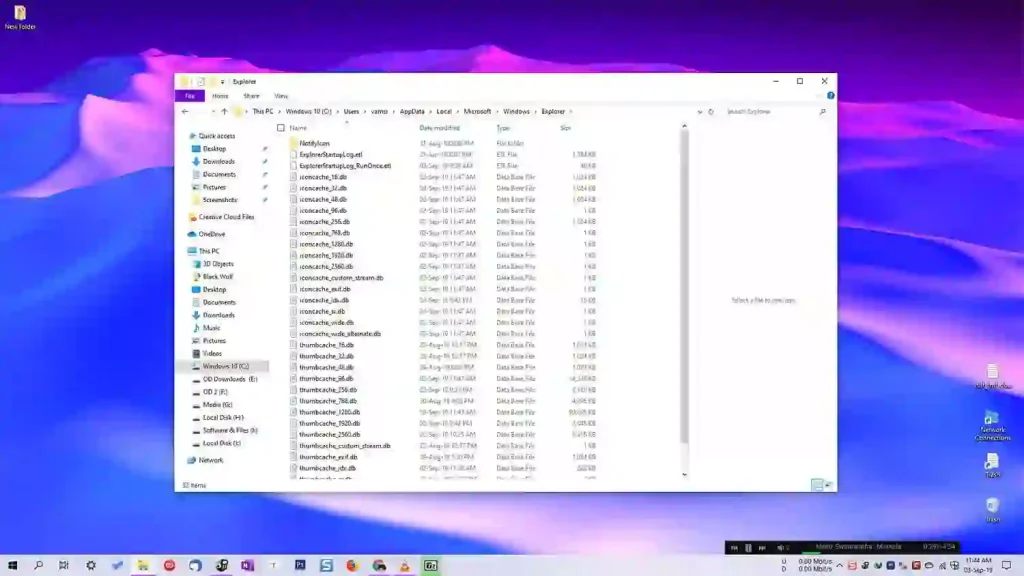
Windows Explorer creates small previews of images and other files so folders open more quickly. These previews are stored in database files called thumbnail caches.
How to find them
- Press
Windows + Rto open the Run dialog. - Enter the following path:
%LOCALAPPDATA%\Microsoft\Windows\Explorer- Press Enter.
- Look for files with names such as:
thumbcache_32.db
thumbcache_96.db
thumbcache_256.db
thumbcache_1024.db
The exact files and sizes depend on your Windows version.
These databases may contain previews of images that have since been deleted. However, they do not necessarily contain every photo on your computer, and a thumbnail does not prove that you deliberately opened the original file.
How to clear thumbnail previews
Use the built-in Disk Cleanup utility:
- Press
Windows + R. - Enter:
cleanmgr- Select your Windows drive, usually C:.
- Check Thumbnails.
- Click OK and confirm the cleanup.
Windows may create new thumbnails when you browse folders again. Clearing the cache is therefore a maintenance step, not a permanent guarantee that no image traces remain.
2. Check the Windows Prefetch Folder
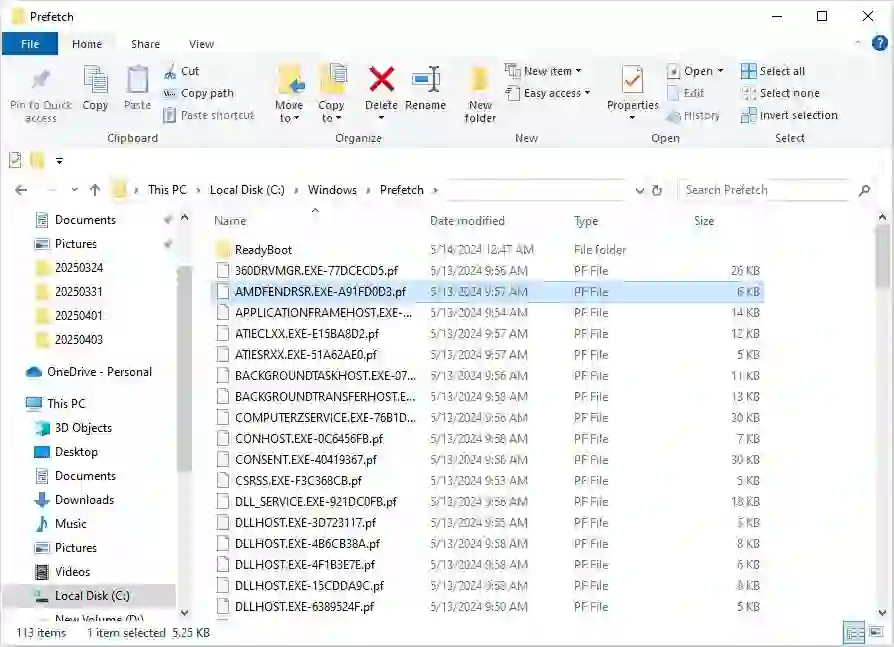
Windows uses Prefetch to help applications launch more efficiently. It stores information about program startup activity and files used during application launches.
This information can also be useful during digital forensic investigations.
How to inspect Prefetch
- Press
Windows + R. - Enter:
C:\Windows\Prefetch- Press Enter.
- Look for files ending in
.pf.
On supported Windows desktop versions, Prefetch records can contain application execution information, including a run count and up to eight recent execution timestamps.
This does not mean Windows keeps a complete lifetime record of every application you have ever installed. Older records can be overwritten, and not every program necessarily produces a Prefetch file.
Should you delete these files?
Usually, no. Prefetch is a performance feature. Windows manages this folder automatically, and manually deleting its contents is rarely necessary for ordinary privacy maintenance.
3. Check Previously Connected USB Storage Devices
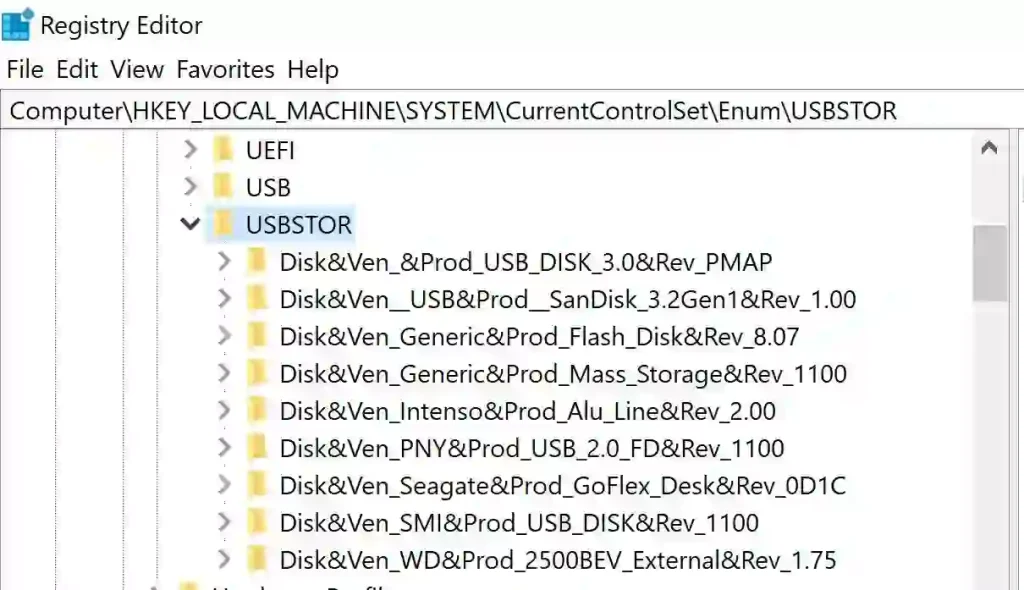
Windows maintains device information in the registry. One location can identify USB storage devices that have previously been connected to your computer.
How to find the USB history
- Press
Windows + R. - Enter:
regedit- Press Enter and approve the permission prompt.
- Navigate to:
HKEY_LOCAL_MACHINE\SYSTEM\CurrentControlSet\Enum\USBSTORYou may see entries containing manufacturer names, device models, and identifiers.
These entries can help identify USB storage devices previously recognized by Windows, including devices that are no longer connected.
Should you remove these entries?
Do not delete registry entries simply because they look unfamiliar. Removing device records can affect hardware detection or troubleshooting, and other Windows records may still contain related information.
If your goal is to prepare a computer for resale, use Windows’ built-in reset process rather than relying on manual registry cleanup.
4. View Saved Wi-Fi Passwords
Windows can remember wireless network credentials so your computer reconnects automatically. If you have administrator access to your own PC, you can inspect saved network profiles.
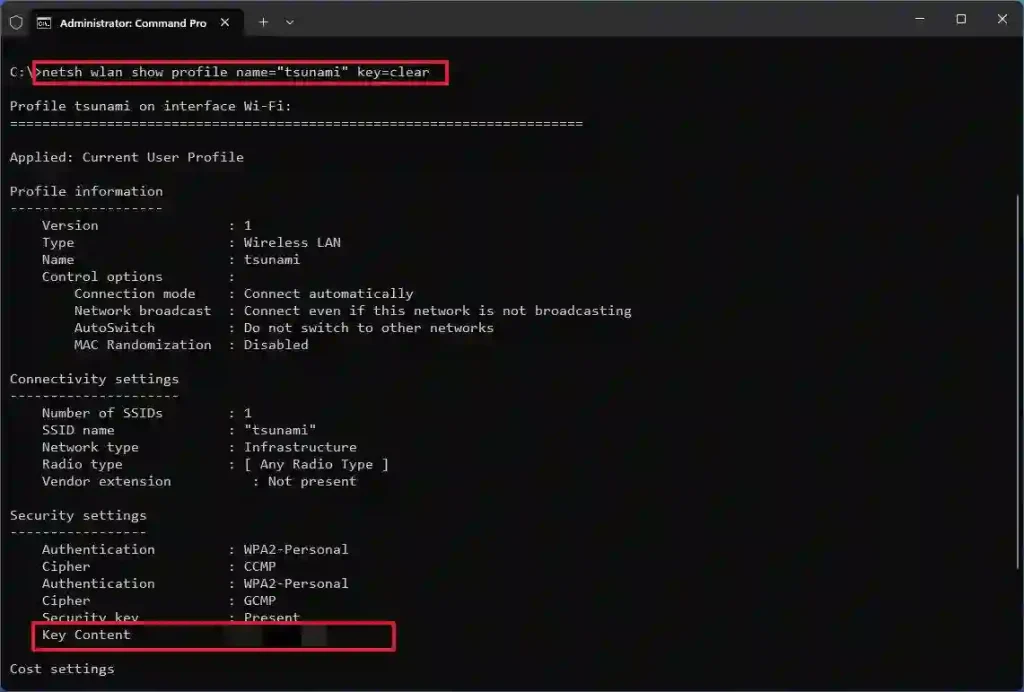
Step 1: List saved Wi-Fi profiles
Open Windows Terminal or Command Prompt and run:
netsh wlan show profilesWindows displays the wireless network profiles saved on the computer.
Step 2: Display a saved password
Replace NETWORK NAME with the exact profile name:
netsh wlan show profile name="NETWORK NAME" key=clearLook for the Key Content field under the Security settings. If the profile contains a saved key and your account has sufficient permissions, the password may appear there.
Be careful when using this command on a shared computer. Anyone who can view the output may be able to read the wireless password.
To remove a saved network profile, use:
netsh wlan delete profile name="NETWORK NAME"This removes the saved profile from the computer. It does not change the router’s Wi-Fi password.
5. Check Windows Clipboard History
Windows Clipboard History can store multiple copied items instead of keeping only the most recent one.
This is convenient when moving text between applications, but it may also retain information you do not want to keep.
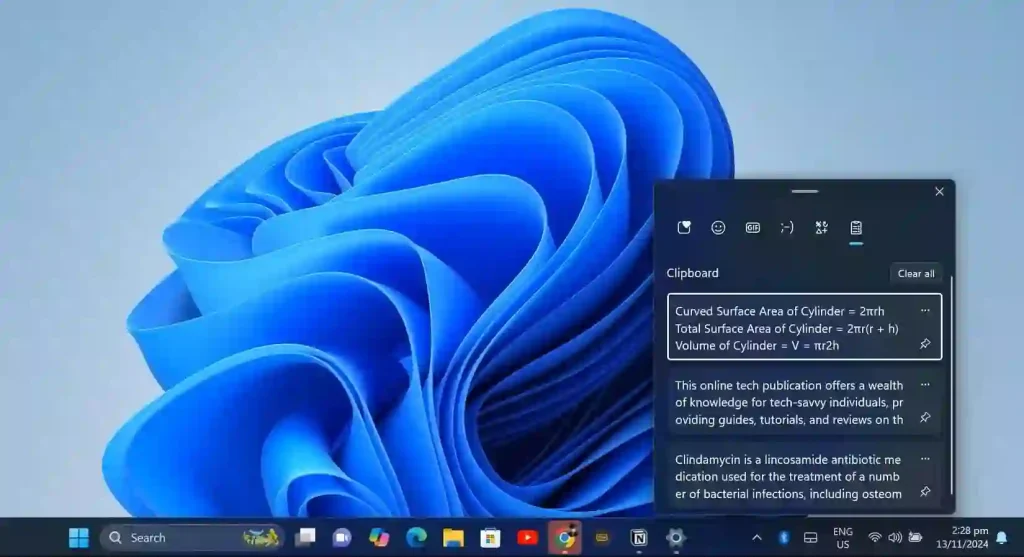
How to view clipboard history
- Press
Windows + V. - If Clipboard History is enabled, Windows displays available clipboard items.
- Review the entries and remove individual items using their menu.
- Select Clear all to clear the current clipboard history.
You can also change the setting through:
Settings > System > Clipboard
Turn off Clipboard history if you do not want Windows to maintain a history of copied items.
Remember that clipboard history is not a complete record of everything you have ever copied. Its contents depend on Windows settings, storage limits, and whether items were pinned or synchronized.
Avoid copying passwords or sensitive personal information when possible.
6. Clear Temporary Files and Thumbnail Data
Windows includes a built-in cleanup feature that can remove certain temporary files and cached data.
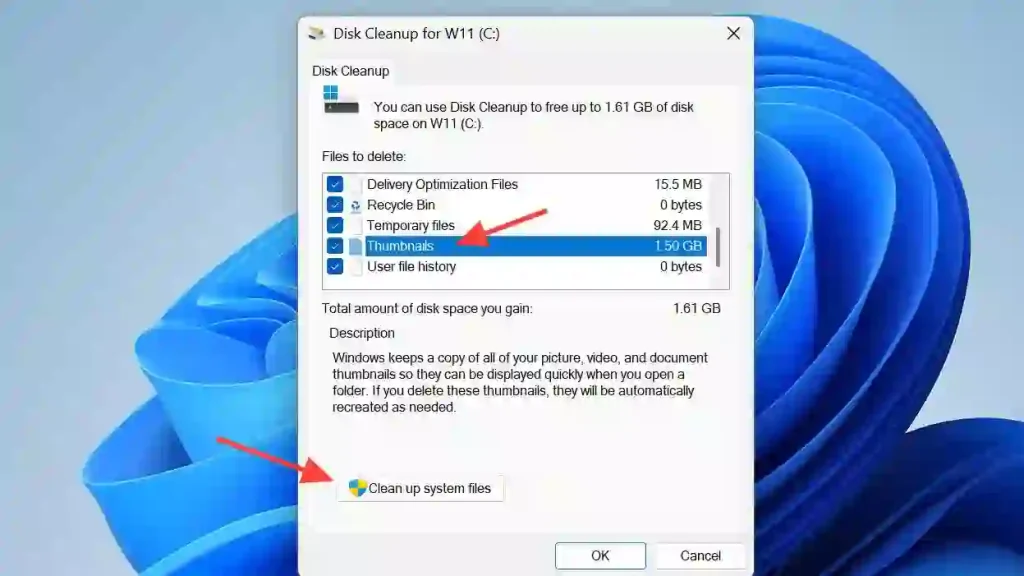
Use Disk Cleanup
- Press
Windows + R. - Enter:
cleanmgr- Select the C: drive.
- Review the available cleanup categories.
- Select Temporary files and Thumbnails when appropriate.
- Click OK.
You can also review temporary storage through:
Settings > System > Storage > Temporary files
Read the category descriptions before selecting anything. Some categories may include files you still need, such as previous Windows installation files or items in Downloads.
For routine maintenance, Windows Storage settings are generally easier to use than manually deleting system files.
7. Review and Clear Recent File Activity
Windows File Explorer can display recently opened files and frequently used folders in its Home or Quick access area.
These shortcuts can reveal which documents or folders you have accessed recently.
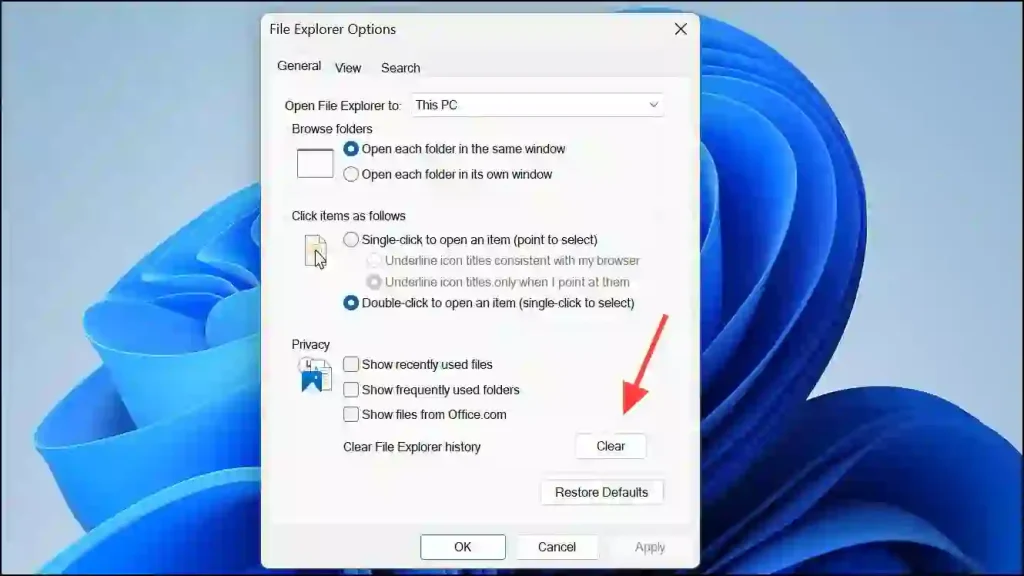
Clear the recent file list
- Open File Explorer.
- Select the three-dot menu.
- Choose Options.
- Under the Privacy section, review these settings:
- Show recently used files
- Show frequently used folders
- Disable the options you do not want.
- Click Clear to remove the displayed File Explorer history.
- Click Apply and OK.
You can also press Windows + R and enter:
shell:recentThis opens the current user’s Recent Items folder. It contains shortcuts to recently accessed files, not necessarily the original documents.
Deleting these shortcuts does not delete the original files. It also does not guarantee that every other Windows or application record has been removed.
Common Mistakes and Troubleshooting
I cannot find the thumbnail database files.
Make sure you are checking the correct Windows user profile. The %LOCALAPPDATA% variable points to the current account’s local application data folder. Some files may also be hidden or recreated automatically.
The Wi-Fi password does not appear.
Check that you entered the exact saved profile name. The profile may not contain a saved key, or your account may not have sufficient permissions.
I cleared Recent Items, but files still appear in other places.
File Explorer history, application-specific recent lists, and Windows search information are separate. Clearing one location does not clear every application.
I deleted the thumbnail cache, but it came back.
That is normal. Windows generates new thumbnail previews as you browse image and video folders.
Does clearing these seven locations erase all personal information?
No. Other records may exist in browser profiles, application databases, event logs, backups, cloud services, and file-system metadata. A routine cleanup is not the same as secure data sanitization.
Final Thoughts
Windows stores activity-related information for practical reasons, including faster application launches, convenient file browsing, and automatic network connections.
Understanding these storage locations helps you make better privacy decisions. You can clear thumbnail previews, review clipboard history, remove saved Wi-Fi profiles, and control File Explorer’s recent activity without randomly deleting system files.
If you plan to sell or give away a computer, take additional steps to back up your data and use Windows’ reset or appropriate secure-erasure options. Do not assume that deleting a few cache files makes a PC safe to transfer to someone else.
Your writing has a way of capturing attention while offering understanding on complex topics. Have you thought about analyzing how these concepts might relate to societal shifts, like sustainability or ethical leadership? Your unique perspective could inspire deeper reflection. Thanks for always sharing such insightful content—looking forward to your next post! ahaaninternational.com