
Building a small web utility sounds simple until you actually start. You might want to create a unit converter, text formatter, image tool, or online calculator. However, even a basic utility needs a user interface, working features, error handling, and a place to host it.
This is where many beginners get stuck. A design may look good in a screenshot, but the buttons do nothing. An AI-generated page may work for one example but fail when users enter unusual values. These problems often happen because people ask AI to build an entire application in one vague prompt without defining the requirements or testing each feature.
Fortunately, modern AI tools can help you build a complete web utility without writing code manually. You still need to describe what you want, review the generated result, and test it carefully. This guide walks through the process from idea to deployment.
1. Choose a Simple Web Utility Idea
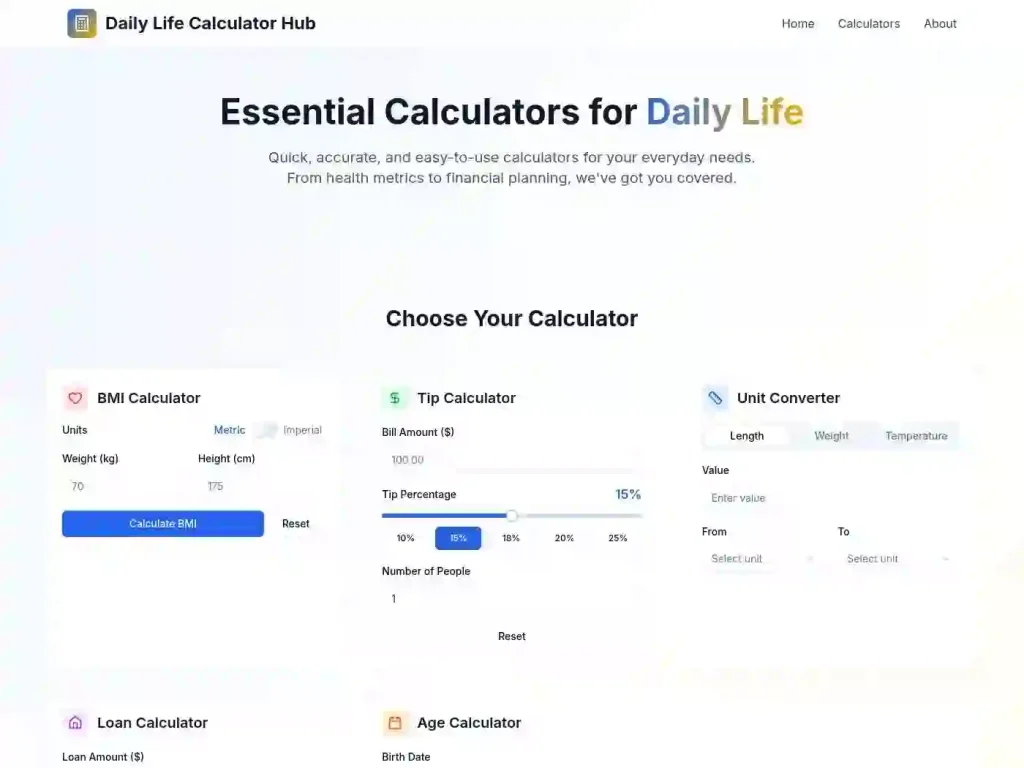
Start with a tool that solves one clear problem. Avoid building a large platform as your first project.
Good beginner ideas include:
- Word and character counter
- Text case converter
- Percentage calculator
- Image format converter
- JSON formatter and validator
- Unit conversion calculator
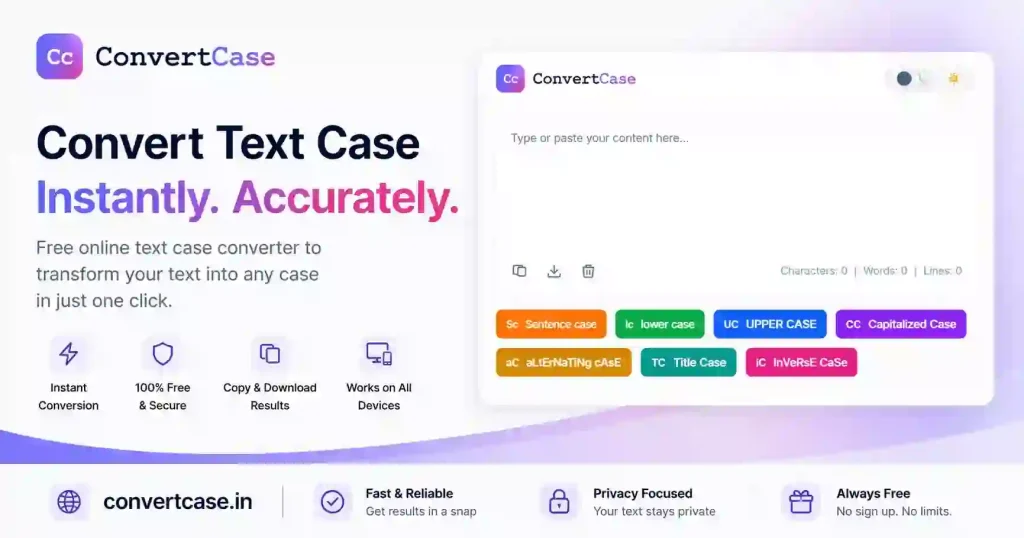
For this tutorial, imagine building a Text Case Converter. Users can paste text and convert it into uppercase, lowercase, title case, or sentence case.
Before opening an AI builder, write down the basic requirements:
- A text input area
- Buttons for different conversion types
- An output area
- A Copy button
- A Clear button
- A responsive layout for mobile and desktop
This short specification gives the AI a clear target.
2. Choose an AI Website Builder
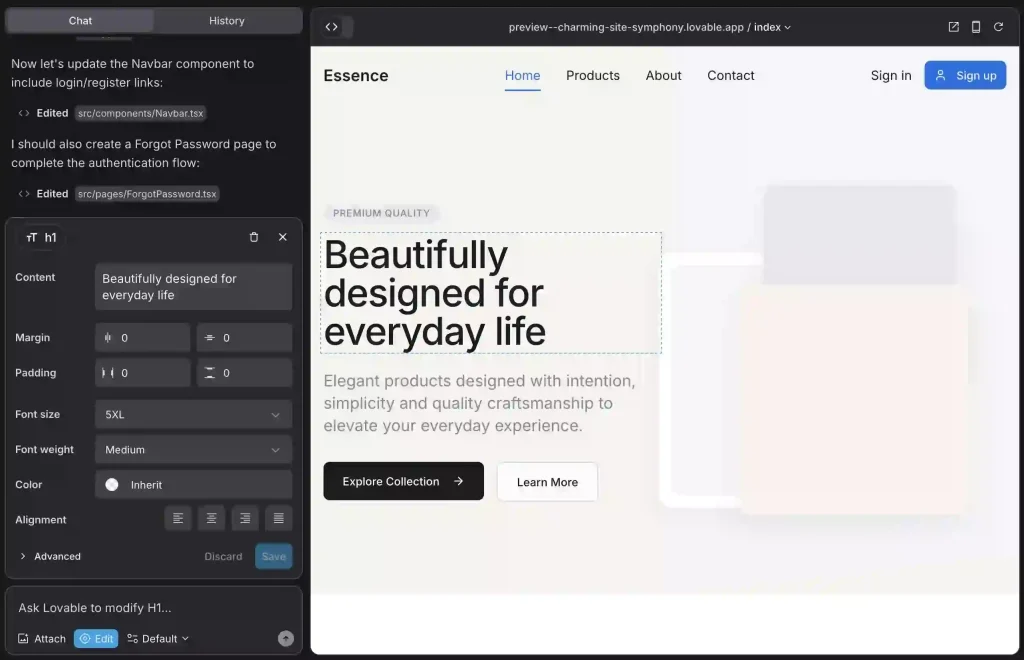
You do not need to install a programming environment or configure a development server to get started. Several AI-powered platforms can generate websites from natural-language instructions.
Some options include:
- Lovable: Generates web applications from prompts and supports iterative changes.
- Bolt: Helps create and run web projects through a browser-based development environment.
- Replit: Provides an AI-assisted environment for building, testing, and deploying applications.
- v0: Helps generate user interfaces and web application components from descriptions.
Features, pricing, usage limits, and deployment options can change, so check each platform’s current plan before choosing.
For a first project, select one platform rather than switching between several tools. A browser-based builder is usually easier because you can describe the application and preview the result in one place.
3. Write a Detailed Prompt for Your Utility
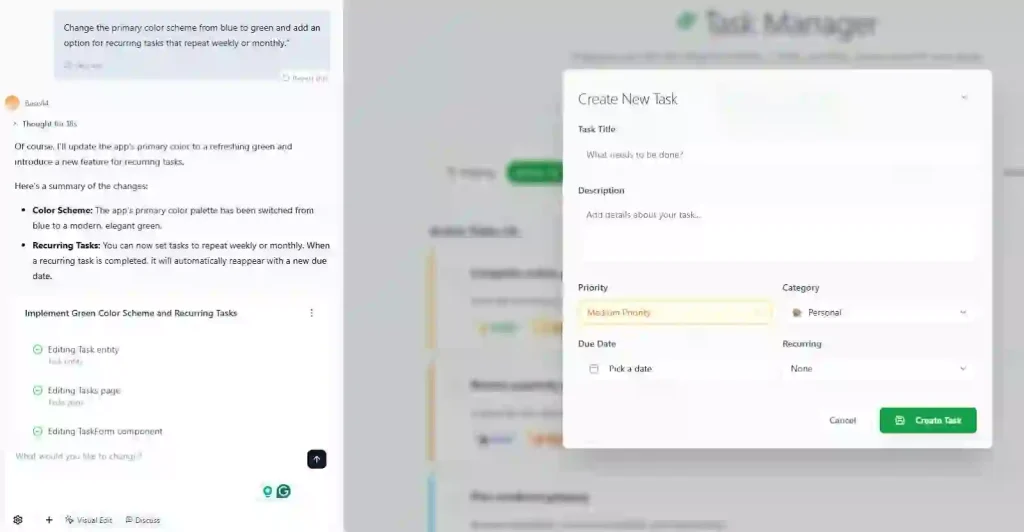
The quality of the generated application depends heavily on the instructions you provide.
Instead of writing “Make me a text converter,” describe the interface, functionality, and expected behavior.
You can use this prompt:
Build a complete, responsive Text Case Converter web application.

Requirements:

1. Create a clean and modern interface.
2. Add a large text input area.
3. Include buttons for:
   - UPPERCASE
   - lowercase
   - Title Case
   - Sentence case
4. Display converted text in a separate output area.
5. Add a Copy button to copy the result.
6. Add a Clear button to reset both text areas.
7. Show the character count and word count.
8. Display a helpful message when the input is empty.
9. Make the layout responsive on mobile and desktop.
10. Do not require user registration.

Make every button functional. Test the main interactions
and fix any errors before presenting the finished result.
Submit the prompt in your chosen AI builder and wait for it to generate the application.
4. Review the Generated Interface
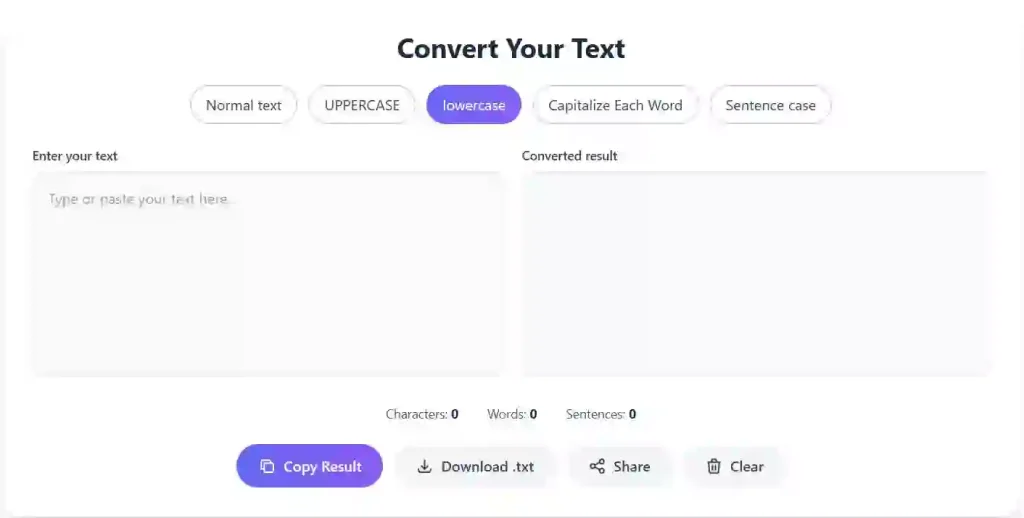
Do not assume the first result is ready to publish.
Open the preview and check the main elements:
- Is the input area easy to find?
- Are the conversion buttons clearly labeled?
- Can users distinguish the original text from the converted result?
- Is the Copy button easy to locate?
- Does the layout fit a mobile screen?
If the design needs improvement, give the AI specific instructions.
For example:
Improve the interface without changing the existing features.

Use a centered content layout with a maximum width of
900 pixels. Add more spacing between sections, make the
buttons consistent, and improve readability.

On mobile screens, stack the input and output areas
vertically. Keep all buttons easy to tap.
Specific requests usually produce more predictable results than asking the AI to make everything look better.
5. Make Sure Every Feature Actually Works
A web utility is only useful when its features behave correctly.
Test each function separately instead of clicking a few buttons and assuming everything is fine.
For the Text Case Converter, try these examples:
| Test | Expected result |
|---|---|
Enter hello world and select uppercase | HELLO WORLD |
Enter HELLO WORLD and select lowercase | hello world |
Enter hello world and select title case | Hello World |
| Leave the input empty | Show a helpful message |
| Click Copy | Copy the converted text |
| Click Clear | Reset both text areas |
Also test punctuation, numbers, multiple spaces, and line breaks.
If something fails, explain the exact problem to the AI:
The Copy button does not work correctly.

Please inspect the existing implementation and fix the
copy function. It should copy the converted output,
show a success message, and handle browsers where the
Clipboard API is unavailable.

Do not remove or redesign other working features.
After the AI makes changes, repeat the relevant tests. Do not rely only on the builder’s statement that the issue has been fixed.
6. Improve the Utility Before Publishing
Once the core features work, consider adding small improvements that make the tool more useful.
For example:
- Add a character count and word count.
- Include a short explanation of each conversion mode.
- Add a sample text button.
- Provide a responsive layout.
- Include a privacy note explaining whether text is processed locally or sent to a server.
For a simple text converter, local browser processing is often sufficient. Ask the AI to explain where the input is processed and check the implementation before making privacy claims.
You should also remove unnecessary features. A focused tool with five reliable functions is often more useful than a complicated interface with many unfinished options.
7. Publish Your Web Utility
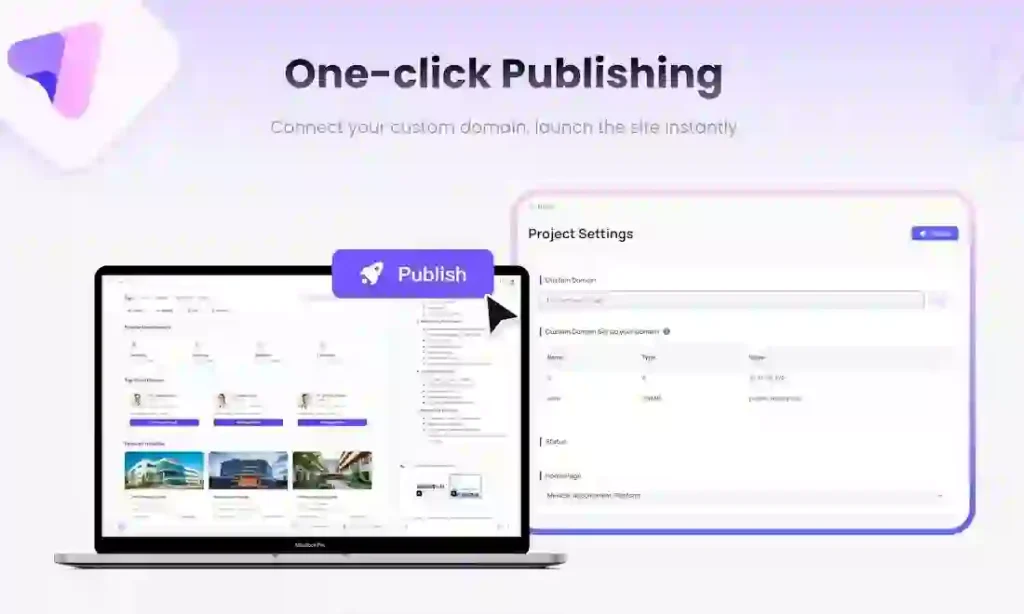
When the application is ready, choose a deployment method supported by your AI builder.
Depending on the platform and project, you may be able to publish directly or export the generated project.
A typical publishing process looks like this:
- Open the project’s deployment or publishing section.
- Review the deployment settings and any usage or hosting charges.
- Publish the application using the platform’s instructions.
- Open the public URL in a private browser window.
- Test the tool again on desktop and mobile.
- Check that all buttons and output functions work on the published version.
If you want to use your own domain, check whether the platform supports custom domains. You may need to configure DNS records through your domain provider.
Do not assume that exporting a project automatically makes it a public website. Some projects require a separate hosting service and additional configuration.
8. Prepare the Website for Search Engines
If you want people to discover your utility through Google, give the page useful content beyond the tool itself.
Include:
- A clear page title
- A short explanation of what the tool does
- Instructions for using each feature
- Practical examples
- Frequently asked questions
- A privacy policy and contact information where appropriate
For example, a Text Case Converter page could explain the difference between uppercase, lowercase, title case, and sentence case.
Use descriptive headings and a concise meta description. Make sure the page works well on mobile devices and does not contain broken links.
Avoid publishing dozens of nearly identical utility pages with little original value. Each tool should solve a real problem and provide useful explanations or examples.
Common Mistakes and Troubleshooting
The generated page looks good but the buttons do nothing.
The prompt may have described the design without clearly defining the expected behavior. List each button and its required action, then test them individually.
The AI keeps changing unrelated parts of the application.
Ask it to fix one specific feature and preserve everything else that already works.
The utility fails with unusual input.
Test empty values, special characters, long text, punctuation, and multiple lines. Report the exact input and result to the AI.
The application works in preview but not after publishing.
Check the deployment logs, browser console, and platform documentation. Preview and production environments may behave differently.
The website is slow or difficult to use on mobile.
Ask the AI to optimize the layout and test the published page on an actual phone.
Final Thoughts
AI website builders have made it much easier for beginners to create useful web applications without manually writing code. You can start with a small idea, describe the requirements, generate the interface, test the features, and publish the result.
The important part is not simply generating a page. It is making sure the finished utility solves a real problem, handles unexpected input, and works reliably after deployment.
Start with one small tool, test it thoroughly, and improve it based on how people actually use it. Once you understand the process, you can apply the same workflow to calculators, converters, text tools, and many other web utilities.