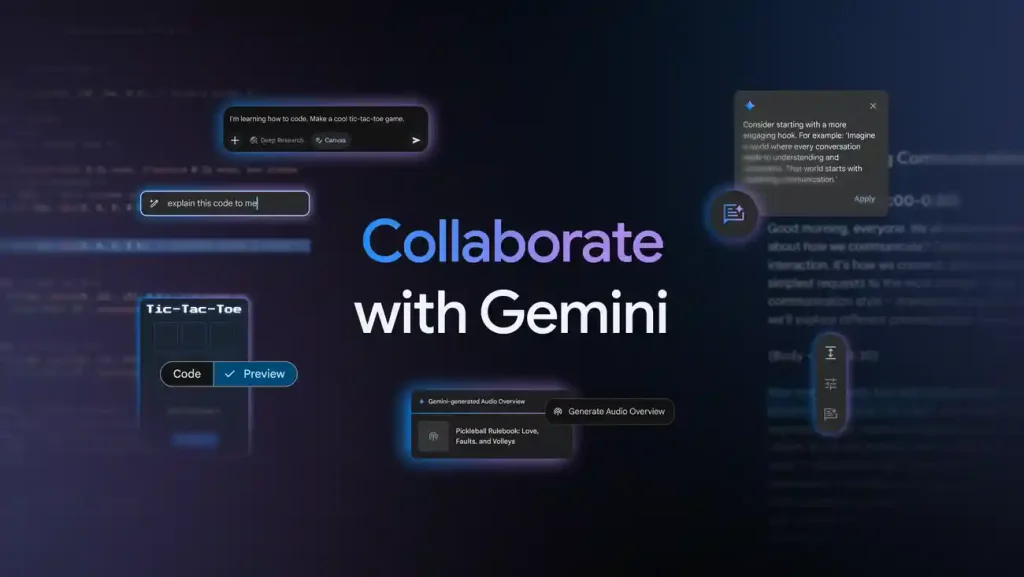
Most people use Gemini in the simplest possible way.
They type a question, get an answer, ask a follow-up question, and move on.
That is useful, but it barely scratches the surface of what Gemini can do.
Over the past year, Google has been turning Gemini from a general-purpose chatbot into something much closer to an AI workspace. It can research a topic, work with your files, connect to Google services, create reusable custom assistants, edit documents and code, generate and edit images, and hold natural voice conversations.
The important part is not that every feature is available to every user. Google changes availability based on the account, region, device, and Google AI plan. Some advanced features also have usage limits.
But if you have only been using Gemini to ask basic questions, there is a lot more to explore.
Here are 10 features and workflows worth trying.
1. Deep Research Can Do the First Pass of a Research Project
Deep Research is one of the most useful Gemini features if you regularly need to investigate a topic.
Instead of asking Gemini one question at a time, you can give it a broader research assignment. Gemini can search for information, synthesize multiple sources, organize the findings, and produce a structured research report.
Google says Deep Research uses Google Search by default and can also use other sources, including Gmail and Drive, as well as uploaded files and NotebookLM notebooks.
How to use Deep Research
On the Gemini website:
Gemini > Add Files > Deep Research
Then give Gemini a specific research objective.
For example:
Research the current state of Windows 11 backup options.

Compare Microsoft's built-in tools with three major third-party solutions.

Focus on features, limitations, pricing, ease of use, and recovery options.

Use current sources and clearly identify important differences.
Gemini will build the research task and work through the sources before producing the report.
This is much more useful than simply asking, “What is the best Windows backup software?”
You are giving Gemini a research assignment rather than a single question.
Google also allows eligible users to export research results to Google Docs or share and copy the resulting report.
2. Gems Turn Gemini Into a Reusable Custom Assistant
If you repeatedly give Gemini the same instructions, stop doing it manually.
That’s what Gems are for.
A Gem is a customized version of Gemini designed around a specific task or workflow. You can give it instructions about its role, the task it should perform, your preferred style, and the format you want.
Google describes Gems as a way to create specific, repeatable instructions for recurring goals.
How to create a Gem
Open:
Gemini > Gems > New Gem
Give it a name and write detailed instructions.
For example, you could create a Gem called:
Technical Blog Editor
Its instructions could say:
You are an experienced English technology editor.

Help me improve technical blog posts for clarity, accuracy, SEO, and readability.

Use natural English and avoid generic AI-sounding language.

Keep technical instructions precise and easy for beginners to follow.

Do not add claims that cannot be supported by the information provided.
You can also add files as knowledge sources for a Gem. Google allows files from your computer and, when connected, files from Google Drive.
This is particularly useful for writers, developers, marketers, students, and anyone who performs the same type of work repeatedly.
3. Connect Gemini to Gmail, Drive, and Calendar
This is where Gemini becomes much more useful for people already living inside Google’s ecosystem.
You can connect the Google Workspace app so Gemini can work with information from services such as Gmail, Docs, Drive, Calendar, Tasks, and Keep.
Go to:
Gemini > Settings & help > Connected Apps
The exact interface can change, but the important part is connecting the Google Workspace service when the option is available.
After connecting it, you can ask questions such as:
Summarize my recent emails about the website project.

Find the document I created last month about the Q3 project.

What meetings do I have next Tuesday?
You can also ask Gemini to work with Calendar events.
For example:
Create a calendar event for a website maintenance meeting next Tuesday at 10 AM for one hour.
Google’s documentation confirms that Gemini can create, find, and edit supported calendar events when the required connection is enabled.
There are limitations, however. Gemini cannot access every type of content in Gmail or Drive, and some Workspace capabilities depend on the account type and administrator settings.
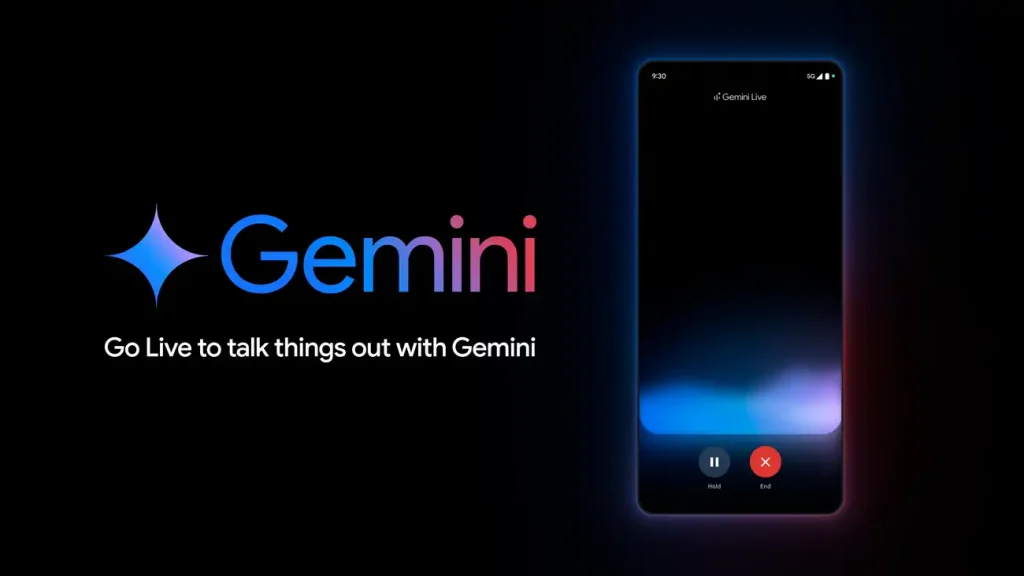
4. Gemini Live Makes Voice Conversations Much More Natural
Gemini Live is different from simply pressing a microphone button and converting speech into text.
It is designed for back-and-forth voice conversations.
You can interrupt Gemini, change the subject, ask follow-up questions, brainstorm ideas, or practice a conversation without constantly stopping to type. Google specifically lists brainstorming, exploration, and interview practice as examples.
How to start Gemini Live
On supported mobile devices:
Gemini app > Live
Then start speaking.
Try something like:
I'm planning a new technology blog.

Ask me questions one at a time and help me decide which topics I should cover.
This works particularly well for situations where typing is inconvenient.
You can brainstorm while walking, practice an interview, rehearse a presentation, or talk through a programming problem.
One important limitation: Gemini Live is a mobile feature and availability can vary as Google rolls out updates.
5. Generate and Edit Images Without Leaving Gemini
Gemini can also generate and edit images directly inside the Gemini experience.
You can start with a text prompt and then continue refining the result conversationally.
For example:
Create a professional hero image for a technology blog about Windows 11 backup.

Use a clean modern desktop setup, a Windows-style interface,
a backup progress indicator, and a professional editorial look.
Use a wide 16:9 composition.
You can then upload an image and request changes.
For example:
Remove the background and replace it with a clean dark studio background.
Or:
Keep the product unchanged but place it on a modern office desk.
Google’s current Gemini documentation describes image generation and editing, including newer image-generation capabilities such as Nano Banana 2, with additional capabilities available through paid plans.
This is useful because you can create an image, inspect it, and continue refining it in the same conversation instead of moving between multiple applications.
6. Canvas Turns Gemini Into a Workspace for Documents and Code
If you use Gemini mainly as a chat window, Canvas is easy to overlook.
Canvas gives you a workspace where you can create and edit documents, applications, slides, and code while continuing to work with Gemini.
Google’s current documentation says Canvas can be used to create and edit documents, apps, slides, and code.
How to open Canvas
On Gemini:
New chat > Canvas
Then describe what you want to create.
For example:
Create a Python script that reads a CSV file,
groups the records by category, and generates a summary report.
You can then ask Gemini to modify a specific part without asking it to regenerate everything.
For example:
Keep the existing code unchanged.

Only modify the CSV validation section and add an error message
when the file is missing required columns.
This workflow is much better for iterative editing than repeatedly copying an entire document or code file into a normal chat.
7. Large Context Windows Let Gemini Work With Much More Material
Another capability that is easy to misunderstand is Gemini’s context window.
The amount of content Gemini can work with depends on the account and plan. Google’s current Gemini Apps documentation lists context windows ranging from 32K tokens on some free usage to up to 1 million tokens for Google AI Pro and Ultra users.
That is still a very large amount of information.
Instead of giving Gemini one small document, you can use it to analyze larger collections of material.
For example, you might upload:
- Several PDF reports
- A large technical document
- Meeting transcripts
- A collection of research notes
- A substantial codebase
- Multiple related documents
Then ask:
Compare all uploaded documents.

Identify repeated conclusions, conflicting information,
missing data, and important topics that appear in only one document.
The important point is not simply having a large context limit.
The real advantage comes from using that capacity for tasks that require cross-document comparison.
8. Gemini Can Become an AI Workflow Instead of a Chatbot
The most interesting part is what happens when you combine several of these features.
Imagine a content workflow like this:
Deep Research
      ↓
Research Report
      ↓
Gem
      ↓
Article Draft
      ↓
Canvas
      ↓
Editing
      ↓
Image Generation
      ↓
Final Content
Or a business workflow:
Gmail + Drive
      ↓
Gemini
      ↓
Research
      ↓
Summary
      ↓
Calendar
      ↓
Action Items
The value is no longer one clever prompt.
You are building a repeatable workflow.
Google’s Drive integration now also supports tasks such as researching across multiple files, summarizing files and folders, using Gems, and creating content in formats such as Docs and Sheets for eligible users.
That shift is important.
Instead of asking, “What can Gemini answer?”
start asking:
“Which part of my workflow can Gemini handle?”
That usually leads to much more practical uses.
9. You Can Build AI Mini-Apps and Custom Workflows
Google has also been moving Gems beyond simple custom instructions.
In Google Labs, eligible users can create AI mini-apps or custom workflows as Gems. Google describes this as a way to create an AI mini-app by describing what the workflow should do.
For example, you could describe a workflow like:
Create an AI mini-app that takes a blog topic,
generates a keyword research checklist,
creates an article outline,
and produces a final SEO review checklist.
The exact capabilities and availability depend on the current Gemini Labs rollout.
This is an interesting direction because it moves Gemini closer to a lightweight application-building environment.
Instead of repeatedly asking for the same sequence of tasks, you can turn the sequence into a reusable tool.
10. The Real Advantage Is Combining the Features
The biggest mistake is looking at each Gemini feature separately.
Deep Research is useful.
Gems are useful.
Canvas is useful.
Connected Apps are useful.
Image generation is useful.
Voice is useful.
But combining them is where the workflow becomes much more powerful.
For example, imagine you are launching a new technology website.
You could use Deep Research to investigate a topic.
Then use a custom Gem to turn the research into an article following your editorial rules.
Move the article into Canvas for editing.
Generate supporting images with Gemini.
Use Google Drive to store the research and finished documents.
Use Calendar to schedule publication and follow-up tasks.
That is a completely different workflow from simply typing questions into a chatbot.
The technology is becoming less about “asking AI a question” and more about delegating parts of a workflow to AI.
Common Mistake or Troubleshooting
A Feature Is Missing
Do not assume that you are doing something wrong.
Gemini features can depend on your Google account, country, device, subscription, language, and rollout status.
Some features also have daily or plan-specific limits.
Check whether you are signed in and whether the feature is supported for your account.
Gemini Cannot Access Gmail or Drive
First check:
Gemini > Settings & help > Connected Apps
Make sure you are using the same Google account that contains the information you want Gemini to access.
For work or school accounts, an administrator may need to enable the required integration. Google also notes that certain types of Gmail and Drive content are not accessible through the Workspace connection.
Gemini Gives an Incorrect Answer
Do not treat Gemini’s output as automatically correct.
Google itself warns that Gemini can produce inaccurate or outdated information. For research, technical work, financial information, legal topics, or other high-stakes subjects, verify important claims against the underlying sources.
Deep Research can make source checking easier, but you should still review important citations and conclusions.
Gems Do Not Behave Exactly as Expected
Make the instructions more specific.
A useful Gem description should explain:
- Its role
- The task
- Relevant context
- The desired output format
Google recommends this same structure when creating custom Gem instructions.
Instead of:
Help me write better articles.
try:
You are an experienced technology editor.

Rewrite technical articles in clear, natural English.

Keep the original meaning.
Use short paragraphs and descriptive headings.
Avoid unnecessary repetition.
Do not invent technical claims.
The more clearly you define the job, the more consistently the Gem can perform it.
The Gemini Feature Most People Miss
The biggest upgrade is not a single button hidden inside Gemini.
It is the ability to combine several capabilities into one repeatable workflow.
Research a topic with Deep Research.
Give recurring tasks to a Gem.
Connect relevant Google services.
Use Canvas for documents and code.
Talk to Gemini through Live when typing is inconvenient.
Generate and edit images when visual content is needed.
Use the large context window for substantial collections of information.
And when a workflow becomes repetitive, turn it into a reusable process or custom AI tool.
That is when Gemini starts to feel less like a search box and more like a workspace.
You do not need to use every feature.
Start with one task that currently takes you an hour.
Find the part that is repetitive.
Give that part to Gemini.
Then measure how much time you actually save.
That is a much more useful way to learn AI than simply trying random prompts and asking what else it can do.